What your students see
The whiteboard
What the board does, and how a student answers on it
When the whiteboard is on, the character can add text, working and diagrams beside the conversation. Students can point, draw and write on a separate layer. Turn it on in Behaviour; it is available in every behaviour mode.
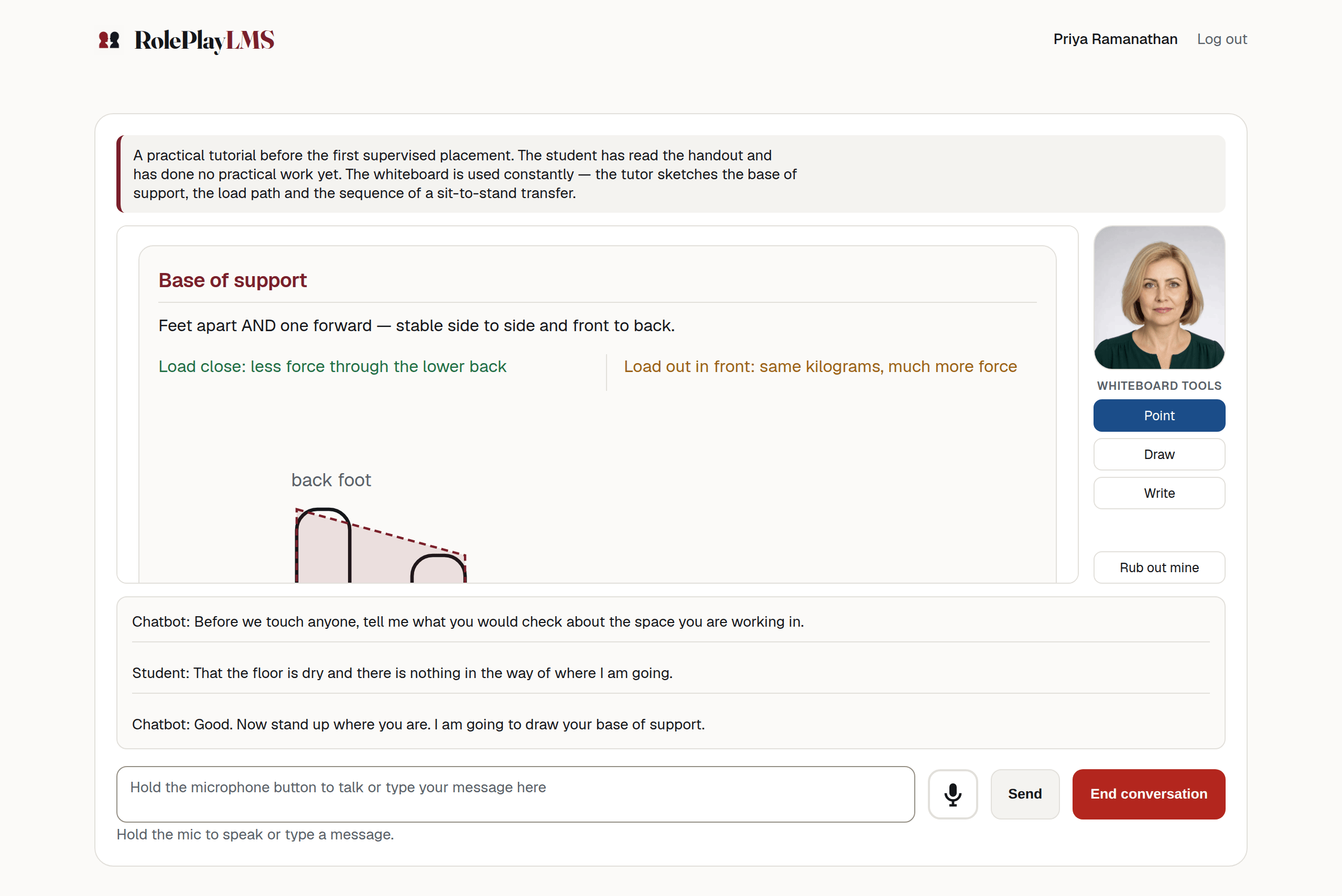
- The student’s whiteboard tools, docked under the character.
- The board. It scrolls inside its own frame, so the page never grows.
- The transcript, which keeps running as normal.
What the character can put on it
The app validates and renders a fixed set of whiteboard operations. The character can produce:
- headings and paragraphs of text
- mathematics, set properly rather than as typed symbols
- plotted functions
- simple diagrams
- a two- or three-column layout, to put a worked example beside its explanation
The board uses seven named colours. An invalid operation or colour is ignored while the rest of the reply continues.
Note
Turning the board on makes it available; it does not guarantee that the character will use it on every turn. Add clear instructions in the role or system prompt when board use is required.
What the board keeps
The board is cumulative. Each new turn is added below what is already there, so a student can scroll back to the definition they were given ten minutes ago without asking for it again. The board scrolls inside its own frame at a fixed height, so the page around it does not grow and the character and the transcript stay in view.
The board is only wiped when the character deliberately starts a fresh page — for instance, moving from one worked problem to the next.
The character’s whiteboard operations are saved with its messages. A teacher can replay them when opening the conversation later. The student’s own marks are not saved as graphics; only the text description sent into the transcript is kept.
When a student resumes a paused conversation, the earlier transcript is restored but the whiteboard is not replayed on their screen. The board starts empty for that visit. See Reading one conversation.
The student’s own tools
Four buttons appear under the character in the Whiteboard tools toolbar.
| Control | What it does | Who sees it |
|---|---|---|
| Point | The default. The student clicks something the character wrote; a ring marks the spot for a few seconds. | Students, on a chatbot with the whiteboard on |
| Draw | Freehand. The student drags to circle or underline anything on the board. | Students, on a chatbot with the whiteboard on |
| Write | The student clicks where they want to write, types, and presses Enter. | Students, on a chatbot with the whiteboard on |
| Rub out mine | Removes everything the student has drawn or written. The character’s own content is untouched. | Students, on a chatbot with the whiteboard on |
A short line beside the buttons says what the chosen tool expects — Click something to ask about it, Drag to draw, or Click where you want to write.
The student’s blue marks stay on a separate layer while the page remains open. They do not change the character’s board content.
Each action becomes text
The character cannot see the browser page. Each student whiteboard action is converted to a text description and sent into the conversation:
I’m pointing at this on the board: “3x + 2 = 14”
Drawing announces I’ve drawn on the board around: and the nearest thing it can name; writing announces I’ve written on the board: followed by what was typed; Rub out mine announces I’ve rubbed out my marks on the board.
This has two consequences:
- The character responds to the text description, not to the drawing itself.
- The description is saved as a student turn in the transcript and may be considered during marking.
Warning
The board describes, it does not photograph
What the character receives is a description of the nearest labelled thing the student clicked near. On a dense board that can be approximate. If precision matters — a specific step in a proof, one cell of a table — ask students to say which one in words as well.
Warning
Keyboard access
A keyboard user can select the toolbar buttons, but placing a point, drawing or choosing where to write requires a mouse, touch or another pointer. The keyboard-accessible alternative is to describe the board item in the conversation text box.
What to check before you use it with a class
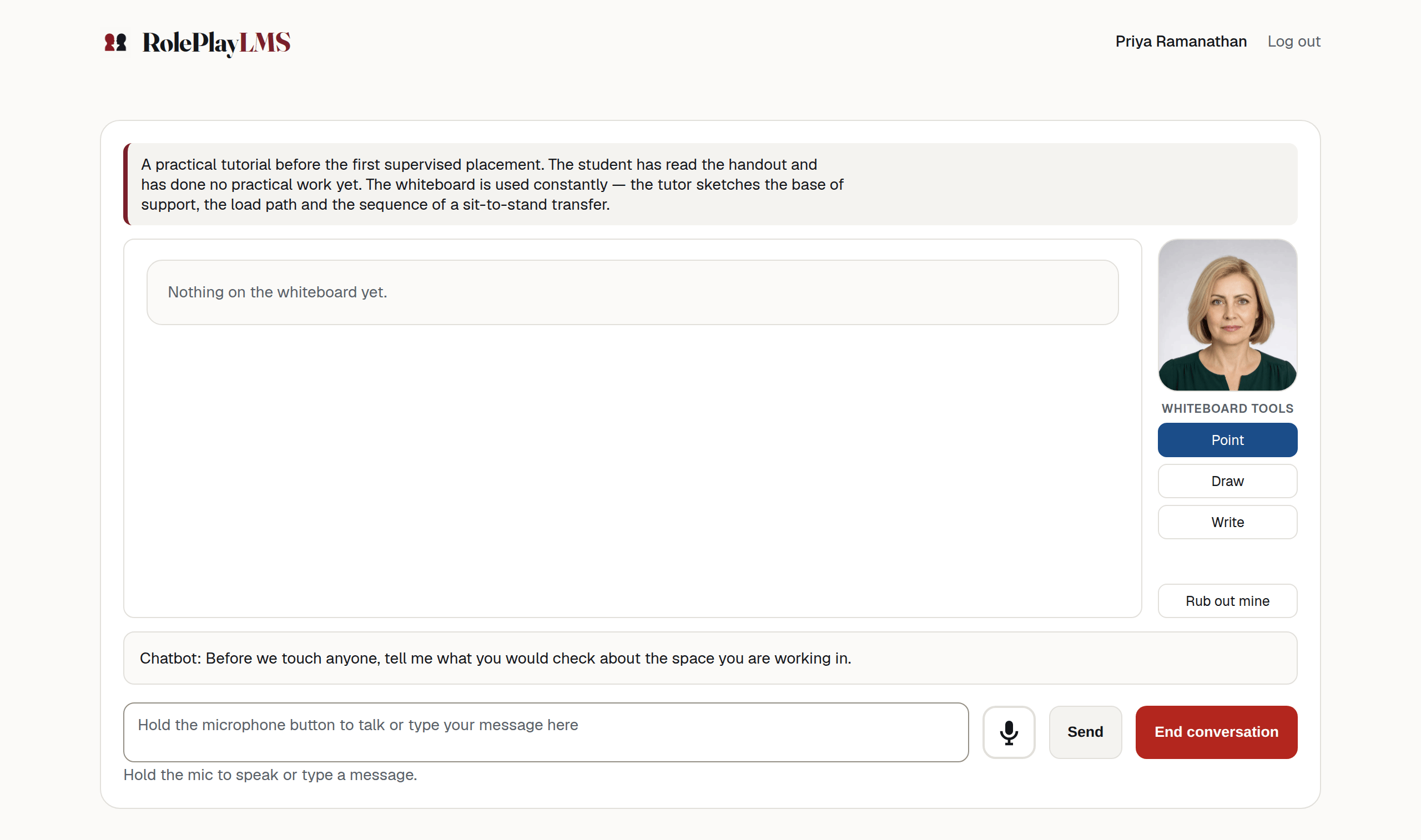
- Open a test conversation and ask the character to set something out. A board that stays on Nothing on the whiteboard yet usually means the chatbot has no reason to use it — say so in the role prompt.
- Try Point and check the text description saved in the transcript.
- Check it at the size your students will use. Below a certain width the board moves under the character rather than beside it, which changes how much scrolling a long worked example costs.