Inside your LMS
Choosing what an activity uses
The content picker, and why a template always gives you your own copy
When you add a RolePlay LMS activity, use the content picker to choose its chatbot. In Moodle, select Select content on the activity settings page. The picker opens inside the LMS.
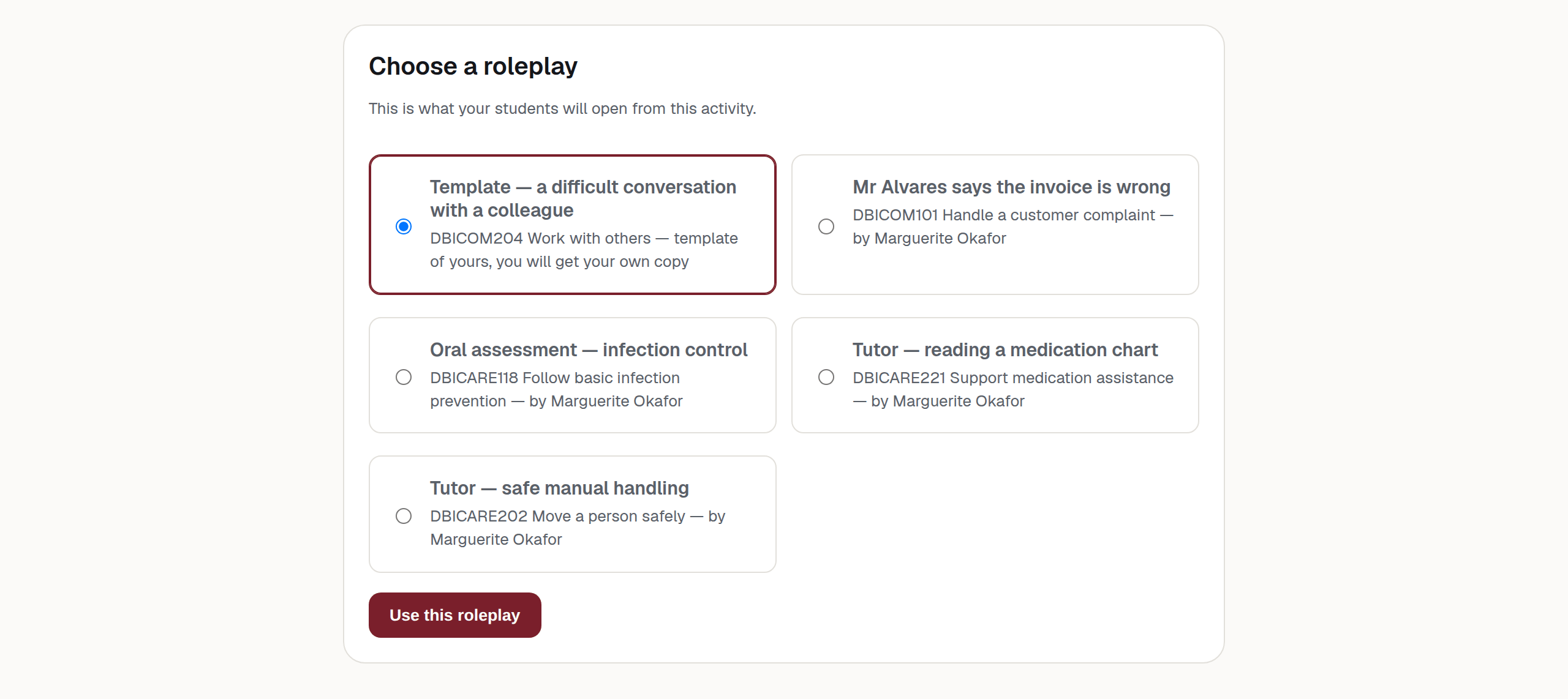
Choose an item and press Use this roleplay. The picker returns the choice to your LMS and requests a gradebook item worth 100 points. Whether and how the LMS creates that item depends on its configuration — Canvas and Blackboard sometimes create it later. A result cannot be sent without a gradebook item. See Releasing a mark.
What is in the list
| Control | What it does | Who sees it |
|---|---|---|
| Templates | Starting points published in your organisation, plus any shared with it from another organisation. | Every teacher |
| Your own chatbots and template copies | Your own ordinary chatbots, and the copies teachers have made from your templates. | Lead teachers |
| The organisation’s chatbots | The chatbots across the organisation. | Administrators |
A standard teacher chooses from templates only. Sharing applies to templates: another teacher’s ordinary, non-template chatbot is never listed, and sharing cannot add it. Sharing a template with another organisation is set up by the platform operator, not from the dashboard.
Each option names itself and then says what will happen: “template by Marguerite Okafor, you will get your own copy”, or “chatbot of yours, you will get your own copy”, or the owner’s name on its own for a chatbot that will be attached as it stands.
Why a template always gives you your own copy
Selecting a template creates a copy and attaches the activity to that copy. The template itself is not attached, even when you own it.
A separate copy is made each time you select a template. Changes to one copy do not change the template or another activity’s copy. The course short name is added to the copy’s name when the LMS supplies it.
Note
If a lead teacher selects one of their own ordinary chatbots, it is attached without making a copy.
The teacher owns and can edit the new copy. Lead teachers may also have access when it was copied directly from their template. See Templates.
Nothing to choose from
Warning
“Nothing to choose from”
If nobody has published a template and you own nothing the picker can offer, it says so and explains the fix in the same breath.
As a teacher: ask your lead teacher to tick Available as a template on a chatbot.
As a lead teacher: tick Available as a template on a chatbot in RolePlay LMS, then click Select content again.
When the picker itself will not open
| Control | What it does | Who sees it |
|---|---|---|
| This page is only reachable from an LMS “select content” action. | You landed here without a live selection — usually a stale tab. Go back to the activity settings and press Select content. | Everyone |
| The selection session has expired. Close this and click “Select content” again. | The picker was left open too long. Nothing was lost. | Everyone |
| Your session was lost. Close this and click “Select content” again. | Same fix. | Everyone |
| The platform that started this selection is no longer registered. | The LMS integration has been removed. Your administrator needs to look at it. | Everyone |
| That roleplay is not one you can attach. | The choice submitted is not in your list. Reload the picker and choose again. | Everyone |
| That chatbot could not be copied. Please try again, or tell your administrator. | The copy failed. Nothing was attached. | Everyone |
The alternative for locked-down LMSs
Some institutions do not let a teacher use content selection at all. In that case the activity can carry a custom parameter instead:
project=<the chatbot's access token>Whoever set up the integration will know whether this is how your institution works. The token comes from the chatbot’s share link on the dashboard.
Warning
An access token is a key, not a name
Treat the access token as a secret. An authorised account in the same organisation can use it to reach the chatbot. Do not put it in a course description, cohort email or support ticket.
Changing what an activity runs later
Select Select content again to point the activity at a different chatbot.
Warning
Re-pointing separates existing conversations
Existing conversations stay with the original chatbot. New conversations go to the newly selected chatbot, so staff may need to check two response lists. Change the selection between cohorts where possible.