Building chatbots
The conversation
How it opens, who speaks first, and which model does the talking
Choose the chat model, who starts the conversation and, when needed, the character’s first line.
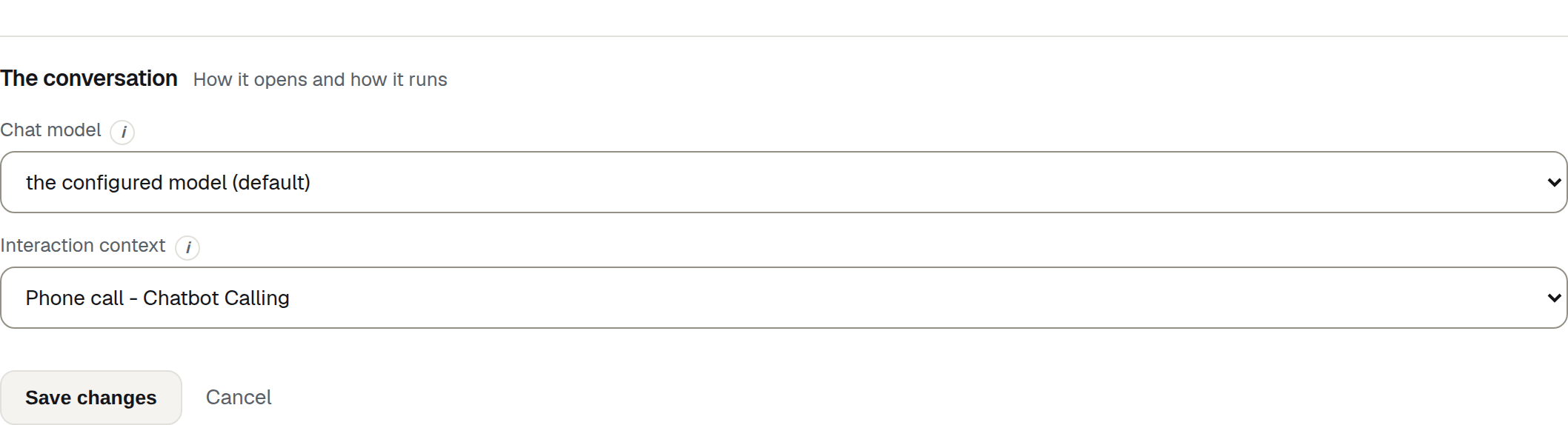
Interaction context
Frames the situation for the character and decides who speaks first.
Choose a phone or in-person setting, then choose who starts. If the chatbot starts, it uses your starter phrase.
| Control | What it does | Who sees it |
|---|---|---|
| Phone call - Chatbot Calling | The chatbot has rung the student. The student answers. | Everyone who can build |
| Phone call - Student Calling | The student has rung the chatbot. The chatbot speaks first, so a starter phrase is required. | Everyone who can build |
| In person - Chatbot start | Face to face, and the character opens. A starter phrase is required. | Everyone who can build |
| In person - student start | Face to face, and the student opens. The default. | Everyone who can build |
For phone calls, the person who receives the call speaks first. With Phone call - Student Calling, the character answers and uses the starter phrase. With Phone call - Chatbot Calling, the student answers and speaks first.
Starter phrase
The first thing the character says, used when the interaction context has the chatbot speak first.
Use a line that starts the situation clearly. For example, “I’m confused, do you know my daughter?” gives the student a specific concern to answer.
The field is hidden for the two contexts where the student opens, and it appears the moment you choose one of the other two. It is required only then — the message is Write the first line the chatbot says, since it speaks first.
Write it as speech, in the character’s own words. It is delivered exactly as typed, in the character’s voice, before the student has said anything, and it is shown on the activity screen before they press Start chat — so it is also the first impression of the scenario.
Note
On the edit overview the First line row shows either your starter phrase or The student speaks first. That is the quickest way to check a chatbot is set up the way you meant.
Chat model
The chat model generates the character’s replies in push-to-talk and typed conversations.
Leave it on the default unless you have a specific reason to change it. Models differ in capability and cost, so check with your administrator before changing it for a large class.
The list holds whatever your administrator has made available, with (default) marked on one of them. A new chatbot starts on the default.
Warning
This setting does nothing when live voice is on
It does not apply when Realtime voice is switched on: that mode uses its own model for both understanding and speech. The edit overview says so outright — the Chat model row reads Not used — live voice is on. Turn live voice off on The character if you want this setting to take effect.
Problems you may see
- Choose how the conversation starts. The interaction context posted a value that is not one of the four. In practice this only happens when a form is submitted from a stale tab; reload the page and choose again.
- The starter phrase you typed is not there after a save. You changed the interaction context to one where the student speaks first, which hides the field. The text is still stored; switch the context back and it reappears.