What your students see
Before they start
What students see before they press Start chat
Students see an introduction screen before the conversation. It shows the title, activity facts, optional opening line, instructions and reading options.
They arrive one of two ways, and the screen is the same either way: from an activity in your LMS (Opening the activity), or from a share link you gave them. Nothing is downloaded and nothing is installed.
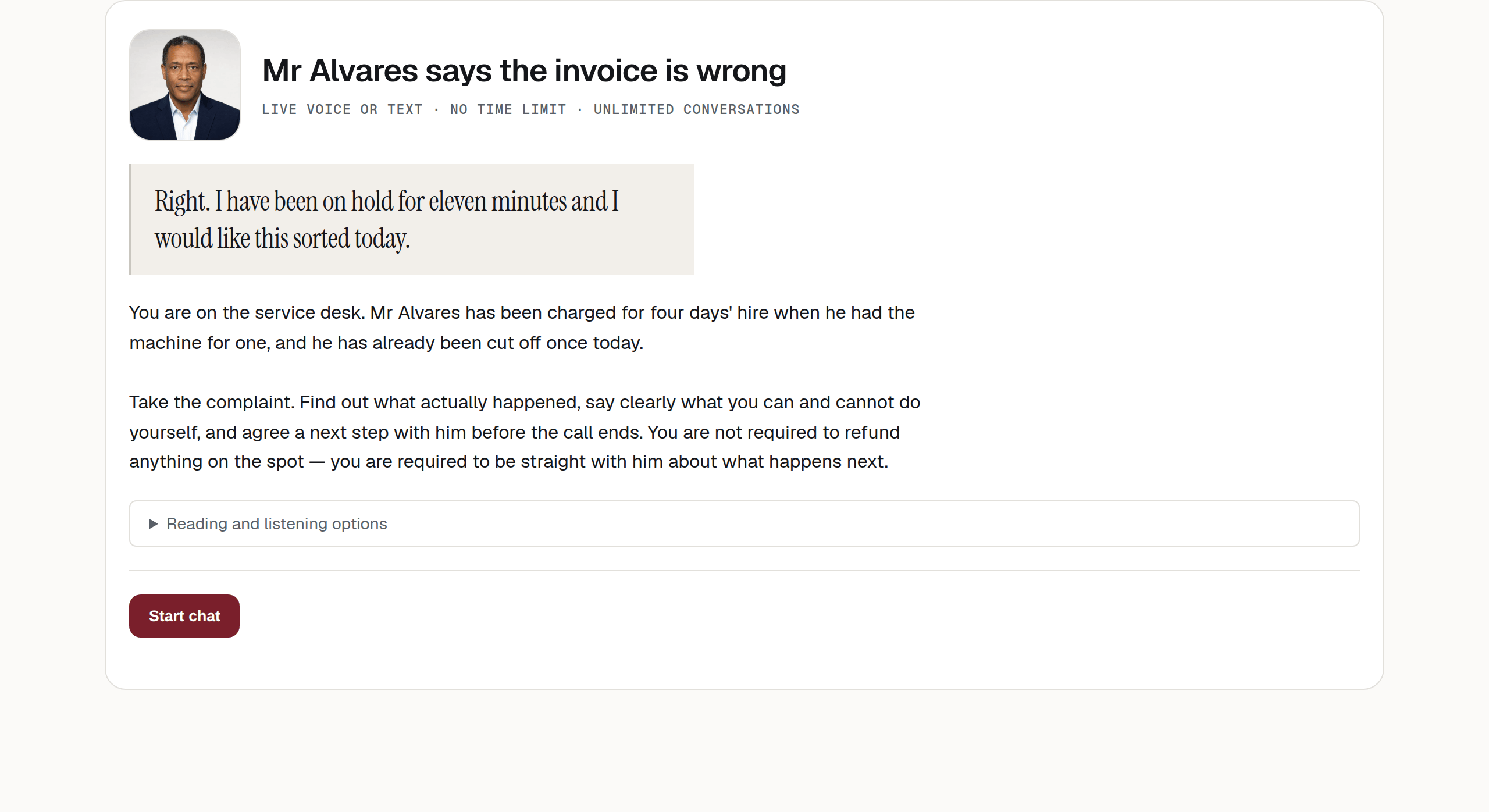
- The title you gave the chatbot.
- The three facts under it — what it is, how long, how many goes.
- The character’s first line, if you wrote a starter phrase.
- Your student instructions.
- Reading and listening options — offered to everybody, closed until wanted.
- Start chat. Nothing has begun until this is pressed.
The three facts
A line under the title tells the student how they can answer, the time limit and which conversation attempt they are starting.
| Position | What it can say | Where it comes from |
|---|---|---|
| How they answer | Speak or type — or Live voice or text when live voice is on |
The character section |
| Time | No time limit — or 12 min limit, rounded up to the minute |
Time limit per conversation in settings |
| Goes | Unlimited conversations — or Conversation 2 of 3 |
Conversations per student in settings |
Set the conversation limit deliberately and explain in the instructions whether the activity is practice or assessment.
Note
A conversation already under way has already been counted, so a student returning to it still reads Conversation 2 of 3, not 3 of 3. This matters on a chatbot with Remember each student switched on, where coming back is the ordinary way to work.
The same line keeps counting once they are inside — see Having the conversation.
The opening line
You will only see this if you wrote a starter phrase
If the interaction context has the chatbot speak first, the character’s first line is shown here, in the serif this guide reserves for words somebody actually said.
I’m confused, do you know my daughter?
If there is no starter phrase, this block is not shown. If there is one, the student reads it before pressing Start chat.
Your instructions
The Student instructions appear with their formatting. Use them for the task, any required opening action and assessment information.
These instructions are not part of the character’s normal conversation prompt. Put information the character needs in the role prompt. See The scenario.
Reading and listening options
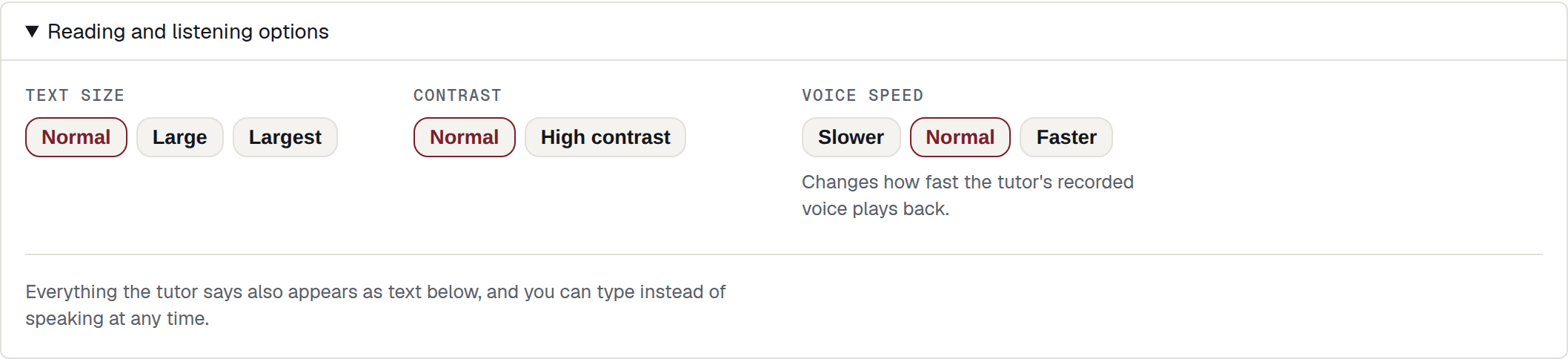
A closed panel sits above Start chat. It opens with three groups of buttons and no sign-up, no disclosure and nothing stored on our servers — the choices live in the student’s own browser.
| Control | What it does | Who sees it |
|---|---|---|
| Text size | Normal, Large, Largest. Scales the root font size. | Every student |
| Contrast | Normal, High contrast. Darkens ink and strengthens hairlines against a white ground. It does not invert — inverting would break the whiteboard’s colours. | Every student |
| Voice speed | Slower, Normal, Faster. Changes how fast the tutor’s recorded voice plays back. | Every student |
The panel closes with the line students most need to read: Everything the tutor says also appears as text below, and you can type instead of speaking at any time.
Note
These options are available to every student. The choices are saved in that browser’s local storage and are not sent to the server.
See Accessibility for the text-size limits and browser zoom.
When the screen is not there
The introduction may be replaced by an access or limit message before the student is asked to use a microphone.



Students may also see Practice minutes used up when the organisation has no minutes left, or Time limit reached when all time for a resumable conversation has been used. Staff opening a student link without test access see Student access only.
Every one of these, with its exact wording and what to do about it, is in Common messages. What to do when a whole class is stuck is in When something goes wrong.
Test it as a student would
The share icon copies the student link. The test icon opens a test run that does not use a student attempt or send a mark. It appears in the responses list with a Test badge. Before release, check the facts line, opening phrase and student instructions.