What your students see
Having the conversation
Push-to-talk, live voice, the status line and the countdown
Pressing Start chat replaces the brief with the conversation. What appears depends on one setting you made in The character: whether live voice is on.
Both modes keep the text box. A student can type instead of speaking, and the typed turns appear in the same transcript.
Push-to-talk
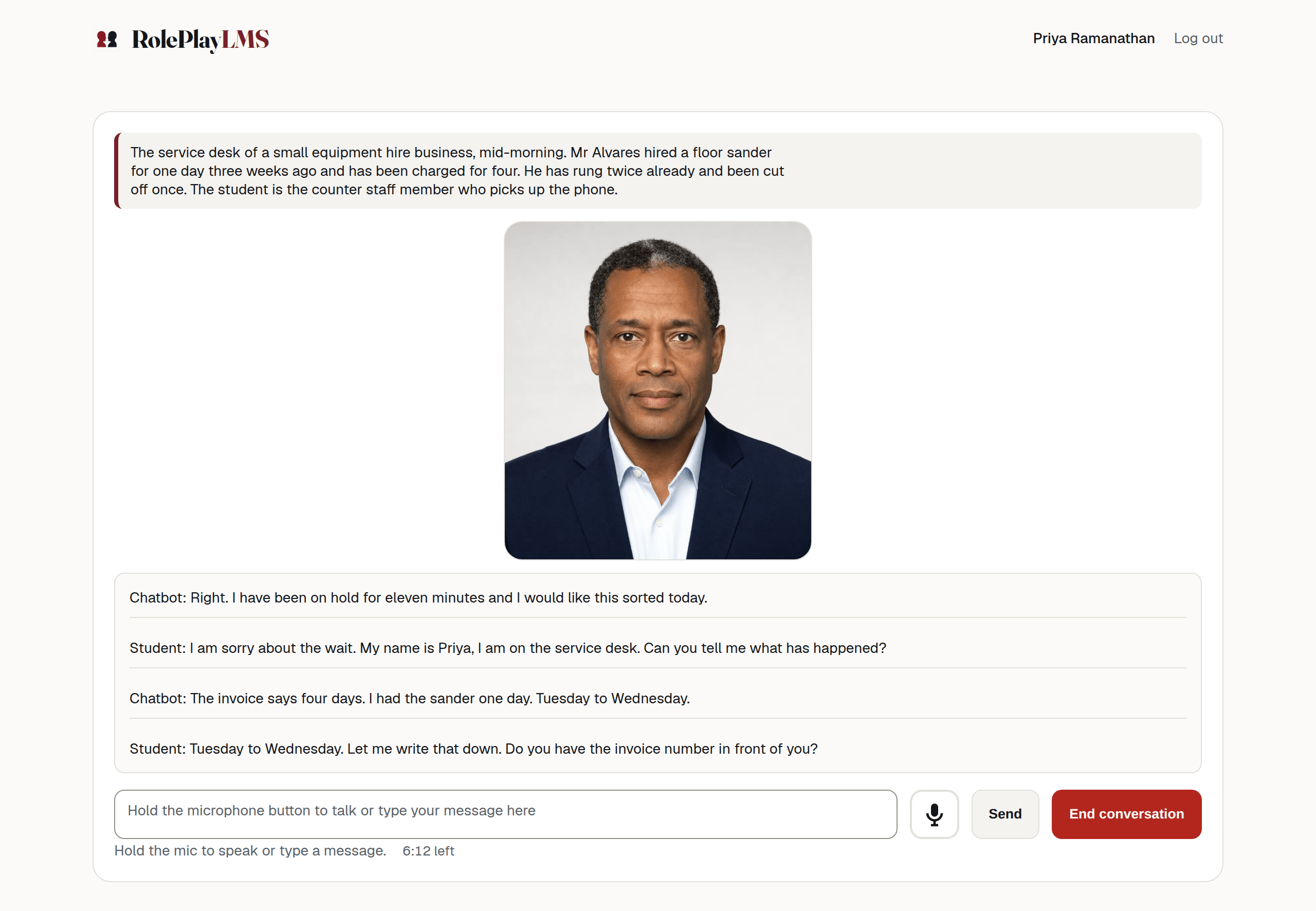
- The scenario notice, if you set one.
- The transcript, growing turn by turn.
- The microphone. Hold it down, speak, let go.
The student holds the microphone button, speaks, and releases it. Releasing is what sends — there is no separate “send my speech” step. The button can also be held from the keyboard: focus it and hold Enter or Space. Letting the key go, or tabbing away mid-sentence, sends the same as releasing the mouse.
The text box beside it is always live. Its placeholder reads Hold the microphone button to talk or type your message here. Enter sends; Shift + Enter starts a new line. Send does the same thing as Enter.
While a turn is being processed, the controls are disabled. The panel says Transcribing speech please wait for a spoken turn or Thinking… for a typed turn. The reply appears as text and plays as audio when audio is available. A talking character also moves with the reply.
Note
The first time a student presses the microphone their browser asks for permission. If they refuse, or the device has no microphone, the status line says Unable to access microphone and typing still works. This is worth saying in your student instructions for a first-week class.
Live voice
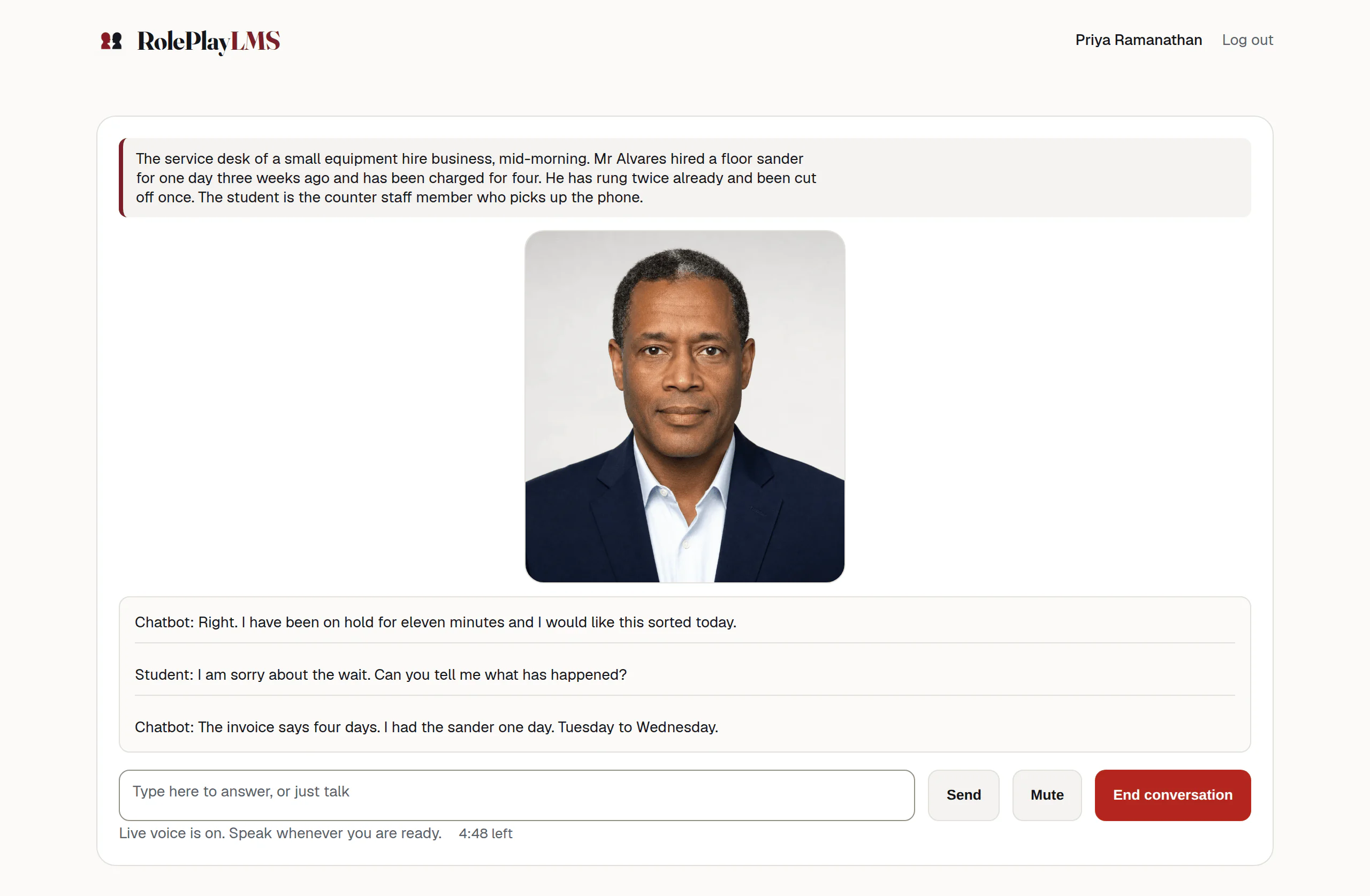
With live voice the student talks and the character answers without anyone pressing anything. Three things change on screen:
| Control | What it does | Who sees it |
|---|---|---|
| Microphone button | Removed. The microphone is open continuously instead. | Students, on a chatbot with live voice on |
| Mute | Added beside End conversation. Switches the student’s microphone off and the button becomes Unmute. Nothing else pauses — the clock keeps running. | Students, on a chatbot with live voice on |
| Text box | Stays, with the placeholder Type here to answer, or just talk. A typed line is sent to the live conversation as text, and the character replies aloud. | Students, on a chatbot with live voice on |
The text box lets a student reply without speaking and send written answers during a live session.
Background noise
Live voice can be interrupted by talking over the character, which is the point — it is what makes the conversation feel like one. What it should not do is stop because a chair scraped.
The microphone is therefore gated. RolePlay LMS listens to the room for a moment at the start, works out how quiet it normally is, and sends nothing that does not rise clearly above that. While the character is speaking the bar is higher still, so interrupting takes a deliberate sentence rather than a noise.
How much higher depends on what the chatbot is. A roleplay stays easy to interrupt, because interrupting is often part of the skill being practised. A guided tutor mid-explanation, and an assessment mid-question, take more — a question cut in half is a question the transcript cannot show was asked.
| Control | What it does | Who sees it |
|---|---|---|
| Level meter | A row of ticks beside the status line. Claret means the student’s voice is going through; grey means the room is being heard but held back. | Students, on a chatbot with live voice on |
| Quiet room / Normal / Noisy room | Under Reading and listening options on the brief screen. Shifts how loud a sound has to be before it is sent. Remembered in that browser, and it can be changed mid-conversation. | Students |
| Test microphone | Beside those buttons. Opens the microphone, shows the level and says whether anything is arriving. It stops on its own after thirty seconds. | Students |
Note
If a student says the chatbot keeps stopping for no reason
Ask them to choose Noisy room, and to check the level meter while they speak — if the ticks stay grey while they are talking, the room is loud enough that their voice is not clearing the bar, and a headset will fix it faster than any setting. Whether a room was noisy also appears on the teacher’s copy of the conversation, so it can be checked after the fact.
Warning
On live voice the countdown runs in the browser
The clock is kept by the student’s browser rather than the server during a live voice session, so treat a time limit there as a firm guide rather than a hard cut. On push-to-talk the server refuses the next turn, which is exact.
What the status line says
The status line under the controls says what is happening. It is a polite live region, so a screen reader can announce changes without moving focus. Common messages are listed below.
| The student sees | It means |
|---|---|
Press Start chat to begin. |
Nothing has started. This is the state behind the brief screen. |
Hold the mic to speak or type a message. |
Ready. The ordinary resting state. |
Recording... release to send. |
The microphone is held down and capturing. |
Processing audio... |
They let go; the recording is being packaged. |
Sending to the chatbot... |
The turn is with the server. |
Ready for your next input. |
The reply has arrived and it is their turn. |
No audio captured. |
The button was tapped rather than held, or the microphone produced nothing. Nothing was sent. |
Unable to access microphone. |
Permission refused, or no microphone. Typing still works. |
Audio ready. Tap play if it did not start automatically. |
The browser blocked autoplay. The reply remains in the transcript as text. There is currently no replay button on this screen. |
Connecting realtime voice... |
Live voice is starting up. |
Live voice connected. Speak naturally. |
Live voice is running. |
Holding back background noise |
Beside the level meter. The room is being heard but is not loud enough to interrupt the character. |
Nothing coming in yet |
Beside the level meter. No sound at all is arriving — check the microphone is the right device and is not muted. |
Microphone muted |
Beside the level meter, after pressing Mute. |
Phone is ringing. Hold the mic to answer. |
A Phone call — Chatbot Calling scenario, waiting for the student to pick up. |
Dialing... |
A Phone call — Student Calling scenario, before the character answers. |
Picking up where you left off. |
A resumed conversation on a chatbot that remembers. The earlier turns are already in the transcript above. |
For explanations of other common messages, see Common messages.
The countdown
Beside the status line sits the clock. It carries whichever of the two limits you set, joined by a middot — for example Conversation 2 of 3 · 9:42 left. Set neither limit and the line is hidden entirely.
The countdown does three things a student can see:
- It counts down in seconds while the conversation is running.
- With a minute to go it changes to its low state and the status line says Less than a minute left — finish your point and the conversation will close. This is said once, not repeatedly.
- At zero the status line says Time is up. Finishing your conversation. and the browser attempts to finish the conversation.
Note
The server checks the limit between turns. If time has run out, it refuses the next turn and shows This conversation has reached its time limit.
Once the conversation starts, the visible countdown runs continuously, including while the student is thinking or has stepped away. After a push-to-talk or typed turn, the server may correct the displayed time from its own usage record. The time the server charges is the gap between turns, with a long idle gap capped at two minutes. With Remember each student on, the server-side limit covers the same unfinished conversation across resumed visits.
When live voice cannot connect
The conversation needs JavaScript, an internet connection and a modern browser. Push-to-talk uses microphone permission and the browser’s media recorder. Live voice also needs WebRTC and a direct connection to the voice service. Typing still works when microphone access is unavailable.
A technical failure downgrades. The student sees Realtime voice unavailable — using push-to-talk instead. and the hold-to-talk microphone returns. Related messages include Could not reach the voice service. Please try again in a moment. and The voice service returned something unexpected. Please try again in a moment.
A refusal stops. If live voice is refused for a reason rather than broken — the account has no practice minutes left, this student has used all their conversations, the conversation has already reached its time limit — the reason is shown and the conversation does not start. Downgrading there would only move the same refusal one screen later.
Warning
Explain push-to-talk before class
Tell students that live voice may fall back to push-to-talk. In that mode they hold the microphone button, speak and release it to send. See When something goes wrong.