Inside your LMS
Releasing a mark
Review rubric marks before they reach the gradebook
For a rubric-marked activity, the suggested mark is held when the student finishes. It appears in Responses with an Awaiting review badge. A teacher must review and commit it before it is sent to the LMS gradebook.
This review step always applies to rubric marks. Completion-only results work differently and are sent automatically — see Activities that are not marked below.
Held for your review
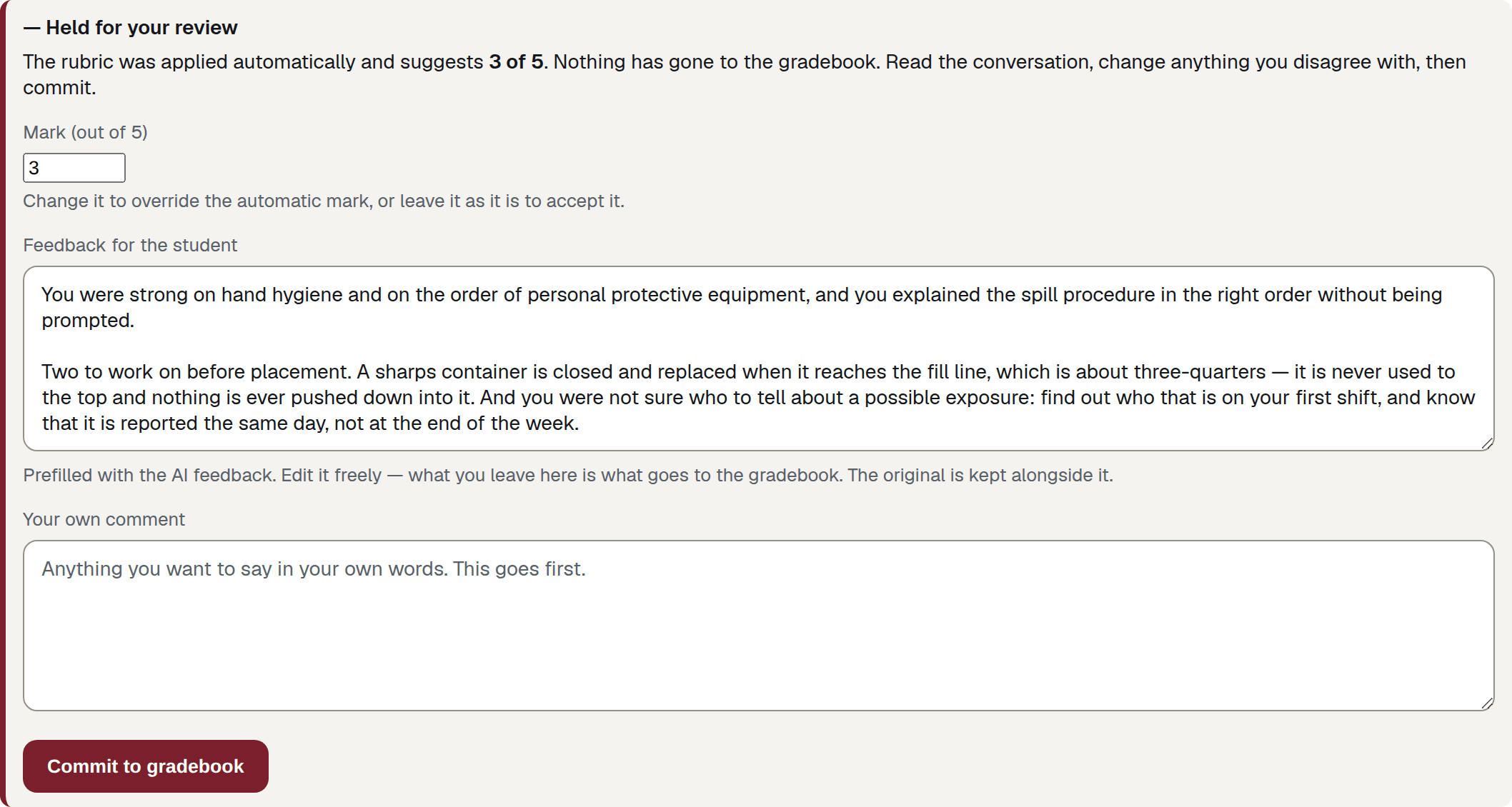
- Mark — arrives prefilled with the suggested mark. Clear it to accept the suggestion unchanged.
- Feedback for the student — may contain generated feedback. Edit it or write your own.
- Your own comment — optional. It appears first in the gradebook comment.
The panel opens with the sentence that matters:
The rubric was applied automatically and suggests 3 of 5. Nothing has gone to the gradebook. Read the conversation, change anything you disagree with, then commit.
Then three controls, then Commit to gradebook.
| Control | What it does | Who sees it |
|---|---|---|
| Mark (out of N) | Arrives prefilled with the suggested mark. Submitting that number records it as an assessor change; clear the box to accept the suggestion unchanged. Type a different number to override it. | The assessor |
| Feedback for the student | What the student will read in the gradebook. It usually starts empty — write or paste the feedback you want sent. | The assessor |
| Your own comment | Optional. Anything in your own words. It appears first in the gradebook comment. | The assessor |
| Commit to gradebook | Sends the mark and the comment to your LMS. One press, once. | The assessor |
Changing or accepting the mark
The mark is out of the rubric’s own maximum, so if the rubric has five criteria and you commit 3, the gradebook shows 60%. The same arithmetic the automatic mark goes through.
The box arrives prefilled with the suggested mark. If you commit with that number still in the box, it is recorded as a change by the assessor: the gradebook comment includes “Mark adjusted by the assessor to 3 of 5.” and the panel afterwards says the mark was changed. To accept the suggested mark without that note, clear the box before committing.
An empty box means “accept the mark the rubric suggested” — which is different from a typed 0. Type the zero if you mean the zero.
The number must be between 0 and the maximum. Outside that range you get The mark must be between 0 and 5. and nothing is sent; anything that is not a number gets The mark must be a number.
The feedback box
Feedback for the student usually starts empty. End-of-conversation feedback is switched off for all roleplay and custom chatbots and for assessable teacher-mode chatbots, so there is normally nothing to prefill. Write or paste the feedback you want the student to read; whatever is in the box when you commit is what is sent. The box can also be left empty.
On an older chatbot set up before this rule, the box may arrive prefilled with the generated feedback the student already read. Edit it or replace it; the conversation page keeps its own copy of the original.
Your own comment
This comment is optional. If you add one, it appears first in the gradebook comment.
What the gradebook receives
The score goes as a percentage out of 100, into the column your LMS created for the activity. The comment can contain, in this order:
- your own comment, if you wrote one;
- “Mark adjusted by the assessor to 3 of 5.” — whenever a number was in the Mark box when you committed (see above);
- “Reviewed and released by your name.”;
- the rubric total (“Rubric: 3 of 5 criteria met.”), the summary, and each criterion marked [met] or [not met] with its comment — met criteria include a “You said:” quotation;
- the feedback text you left in the box, under a “Feedback” heading;
- the transcript, only when the chatbot is set to send the score and transcript.
A very long comment is cut at 60,000 bytes, with a note saying so. The LMS controls how the score and comment appear to teachers and students.
After you commit

The panel becomes ✓ Sent to the gradebook. It records when the result was sent, whether the mark was changed, and your comment. The Awaiting review badge disappears from the responses list and the waiting-for-you count drops by one.
A confirmation across the top of the page names the LMS it went to, for example “Sent 60% to Drop Bear Institute Moodle.”
Warning
Committing is a one-way action
There is no “un-commit”. Pressing the button again gets This result has already been sent to the gradebook. and nothing is sent twice. If the mark needs to change after that, change it in your LMS’s own gradebook.
When automatic marking fails
Sometimes there is no automatic mark because marking failed or produced no usable result. The panel says:
This conversation could not be marked automatically. Read it and enter a mark yourself. Nothing has gone to the gradebook.
The Mark field is then empty, labelled Mark (percentage) if the rubric had no usable maximum, and it is required — the note under it reads “Required — there is no automatic mark to fall back on.” Commit without one and you get This conversation could not be marked automatically. Enter a mark before committing.
No result is sent until a teacher enters and commits a mark.
Note
A rubric-marked conversation closed by the scheduled process — one nobody ended — goes through this same review step and is held like any other.
What the student sees before review
Assessable roleplay and custom chatbots do not show immediate end feedback. The student is told that their teacher will review the result:
Saved. Your teacher will review your conversation before your result goes to your LMS.
The suggested mark is not shown to the student.
Activities that are not marked
An activity set to send completion posts 100 out of 100 automatically when the student finishes, with the gradebook comment “Practice conversation completed.” It does not use a rubric or wait for teacher review — this includes conversations closed by the scheduled process. These conversations do not carry Awaiting review and do not show a review panel.
The same is true of anything without an LMS behind it: a conversation reached from a shared link has no gradebook to send to, so no panel appears.
When the commit fails
| What you see | What it means | What to do |
|---|---|---|
| This result has already been sent to the gradebook. | Somebody committed it — possibly you, on a double submit. | Nothing was sent twice. Reload to see the committed panel. |
| This conversation is not waiting for review. | It was never held, or it has already been dealt with. | Reload the page to see its current state. |
| This conversation did not come from your LMS, so there is no gradebook to send it to. | It was a shared-link conversation. | Read it here. There is nowhere to post a mark. |
| The LMS activity has no gradebook column, so there is nowhere to send this. | The activity was added without a graded column. The work is still marked and held here. | Enter the mark in your LMS by hand, and add a graded column before the next cohort. |
| The LMS activity this came from is no longer registered. | The LMS integration has been removed or replaced. | Your administrator needs to look at it. |
| The mark could not be sent to your LMS. Nothing has changed — try again. | The LMS refused the mark or could not be reached. | Try again. The conversation stays held, so nothing is lost. If it keeps failing, tell your administrator. |
| Response not found. | The conversation is not one you may act on. | Go back to Responses. |
If sending fails, the conversation remains in the review queue. It is only marked as committed after the LMS accepts it.
Who may commit
Any teacher with review access to the conversation may commit it: the chatbot owner, a teacher granted access through the LMS course, and a lead teacher or administrator within their organisation. Students cannot commit marks. See Roles.