Building chatbots
The chatbot dashboard
Find and manage the chatbots you can access
After you sign in at roleplaylms.com, the dashboard lists the chatbots you can access. Use the filters above the list to find one. Standard teachers get five actions on each row. Lead teachers and administrators also get Duplicate chatbot.
Most teachers meet a chatbot first as an activity inside their LMS. That side of the product is covered in Opening the activity; this chapter is the building side, which lives on roleplaylms.com.
What the list contains
The heading tells you which list you are looking at.
| Heading | Who sees it | What is in the list |
|---|---|---|
| Your chatbots | A teacher | The chatbots you made |
| Your chatbots and copies of your templates | A lead teacher | Your own, plus copies made from your templates through the LMS content chooser |
| Chatbots in your organisation | An organisation administrator | Everything in the organisation |
A lead teacher sees copies made directly from their templates through the LMS content chooser. Copies made on the website — with Duplicate or the create wizard — are not linked back to the template and do not appear, and neither does a copy of a copy. See Templates and copies.
Note
A lead teacher does not have organisation administrator access to users, usage or invoices. See Who can do what.
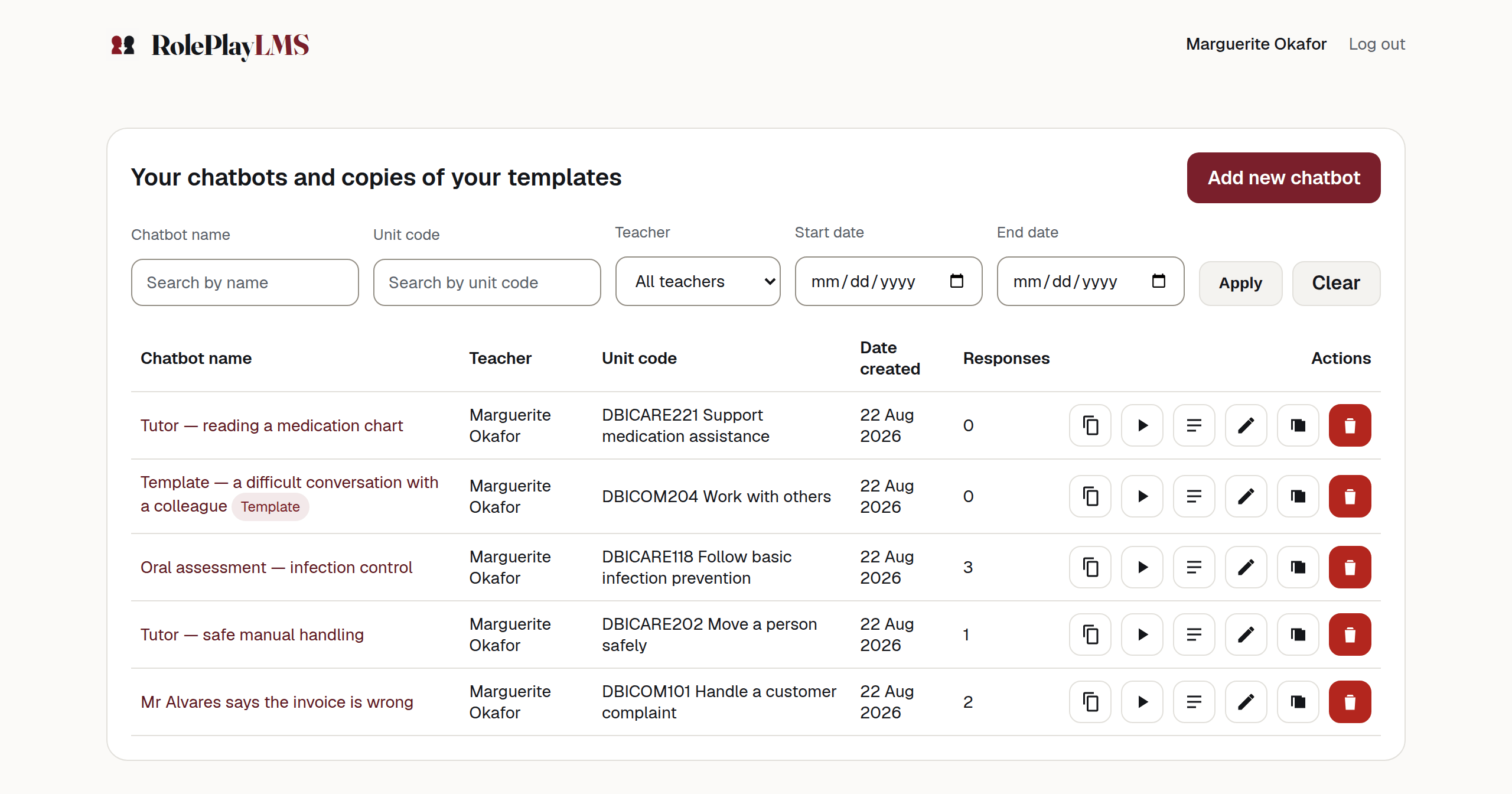
- Add new chatbot — opens the create wizard.
- Teacher — the filter only a lead teacher gets.
The columns are Chatbot name, Teacher (lead teachers and administrators only), Unit code, Date created, Responses and Actions. The name is a link to that chatbot’s conversations, the same place the third icon goes. A chatbot published for other teachers to copy carries a Template badge beside its name.
Ten chatbots fit on a page. Above ten you get Previous, Page 2 of 4 and Next under the table.
The empty state
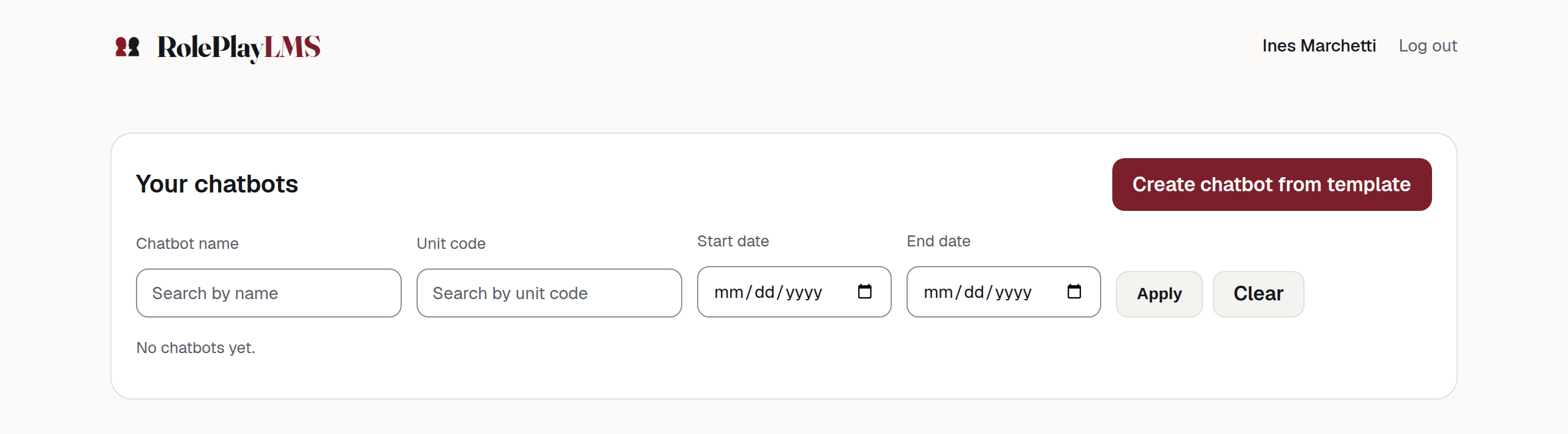
A newly added teacher owns nothing, and the list says No chatbots yet. The filter bar and the create button are still there — the list is empty, not broken.
The filters
| Control | What it does | Who sees it |
|---|---|---|
| Chatbot name | Matches anywhere in the title, not only the start. | Everyone |
| Unit code | Matches anywhere in the unit code. | Everyone |
| Teacher | Narrows the list to one person’s chatbots. Lists everyone in your organisation who can build. | Lead teachers and administrators |
| Start date | Created on or after this date. | Everyone |
| End date | Created on or before this date. | Everyone |
| Apply | Runs the filter. | Everyone |
| Clear | Drops every filter and goes back to page one. | Everyone |
Filters combine: a unit code and a start date together give you the chatbots for that unit made since that date. Paging keeps your filters, so Next on a filtered list stays filtered.
You will only see this if you are a lead teacher
The Teacher filter is added to the bar, and a Teacher column is added to the table. Neither appears for a standard teacher, whose list holds only their own work.
Row actions
The actions are icon buttons with tooltips and screen-reader labels, and the names below are exactly those labels. A standard teacher sees five. Lead teachers and administrators also see Duplicate chatbot.

| Control | What it does | Who sees it |
|---|---|---|
| Copy link | Puts the chatbot’s share link on your clipboard and shows Chatbot link copied to clipboard. If the browser refuses, it shows Unable to copy link. | Everyone |
| Test chatbot | Opens the activity in a new tab as a test run. | Everyone |
| View responses | The conversations students have had with this chatbot. Same destination as the chatbot’s name. | Everyone |
| Edit chatbot / Rename chatbot | One pencil, two destinations — see below. | Everyone |
| Duplicate chatbot | Opens the create form filled in from this chatbot. | Lead teachers and administrators |
| Delete chatbot | Deletes the chatbot and every conversation recorded against it. | Everyone, for chatbots they can reach |
Copy link
This copies the chatbot’s share link. A signed-in student from your organisation can use it to start the activity. You do not need it when students open the activity through your LMS.
Warning
Treat a share link like a password
Anyone signed in who holds the link can hold a conversation with the chatbot, and the time they spend is charged to the account that owns it. Send it to the people who need it, not to a page anyone can read.
If a link gets out, open Edit chatbot and use Replace this link. The old link stops working immediately. You can also cap it in advance with Conversations on this link.
Test chatbot
Opens the activity in a new tab, signed in as you. A run you start this way is recorded as a test:
- it is listed under View responses with a Test badge, so you can read it back the way you read a student’s;
- it does not spend one of the student’s goes, and it is not counted in the Conversations per student limit;
- it is left out of the organisation’s usage figures.
Testing is the only way to hear a voice in context and to see what your character does with a reply you did not plan for. Do it before you share the link.
View responses
Goes to the conversations for this chatbot. Reading them is covered in Reading conversations and One conversation.
The pencil
There is one pencil on the row, and where it goes depends on your role.
- A lead teacher or an administrator gets Edit chatbot — the full editor, six sections, described through the rest of this chapter.
- A standard teacher gets Rename chatbot — a two-field form holding Chatbot name and Unit code. On the website a standard teacher cannot save any other edit, even on their own chatbot; the attempt is refused with Teachers cannot edit chatbots. Choose a template instead.
See Renaming for the short rename form and LMS name syncing.
You will only see this if you are a teacher whose LMS was registered for authoring
Your institution can register a platform so that teachers build from inside the LMS. There you get the create wizard and the full edit form, and you can save edits on your own chatbots. You do not get the Teacher filter or the Duplicate icon, the dashboard pencil still goes to Rename, and teaching content stays with lead teachers and administrators.
Duplicate
Duplicate opens the create form with the original chatbot’s fields filled in and ” (copy)” added to the title. The copy is not made until you press Create chatbot; closing the tab instead leaves no trace.
The copy includes the static character image, a built-in talking character and any teaching content. A retired custom 3D character no longer renders, so the copy shows the static image instead. A dashboard duplicate does not inherit the LMS result mode or marking rubric — it falls back to completion with no rubric. Review the new chatbot before sharing it.
Delete
Deleting asks first: Delete this chatbot and all responses? This cannot be undone. Agree and the chatbot goes, along with every conversation, transcript and audio file recorded against it. When it is done the page says Chatbot deleted.
Warning
Deleting a chatbot destroys assessment evidence
Download any conversations you must keep before deleting the chatbot — Reading conversations has the download controls. The audit log records the deletion, but it cannot restore the chatbot or its conversations.
Inside an LMS
A lead teacher launching from an LMS gets the dashboard inside the activity frame, with the same list and the same actions. On a platform registered for authoring, a standard teacher gets it too. Otherwise a standard teacher builds on roleplaylms.com, and the activity says so, with a button that opens the site in a new tab. The activity itself, and the conversations in it, stay where they are.
If something is not where you expect
- A chatbot you know exists is missing. Check the filters first, then the page number. If it belongs to another teacher and you are a lead teacher, you only see it when it was copied directly from one of your templates through the LMS content chooser.
- The pencil says Rename and you expected Edit. You are signed in as a standard teacher. See Who can do what.
- A row’s Responses count is climbing on a chatbot marked Template. A template is a master to copy from, so students should not be reaching it. Somebody has been given its share link directly. Templates and copies explains how copies are meant to be made.