Building chatbots
Teaching content
Attach the course material the chatbot should use
Without attached teaching content, the chatbot relies on the model’s general knowledge. Attach your own material when its replies need to follow a course, policy or source document.
You will only see this if you are a lead teacher or an administrator
Only lead teachers and administrators can change teaching content. A standard teacher — including one who builds through an authoring-enabled LMS — sees Only lead teachers and administrators can change a chatbot’s teaching content.
The empty state, and why it is worth reading
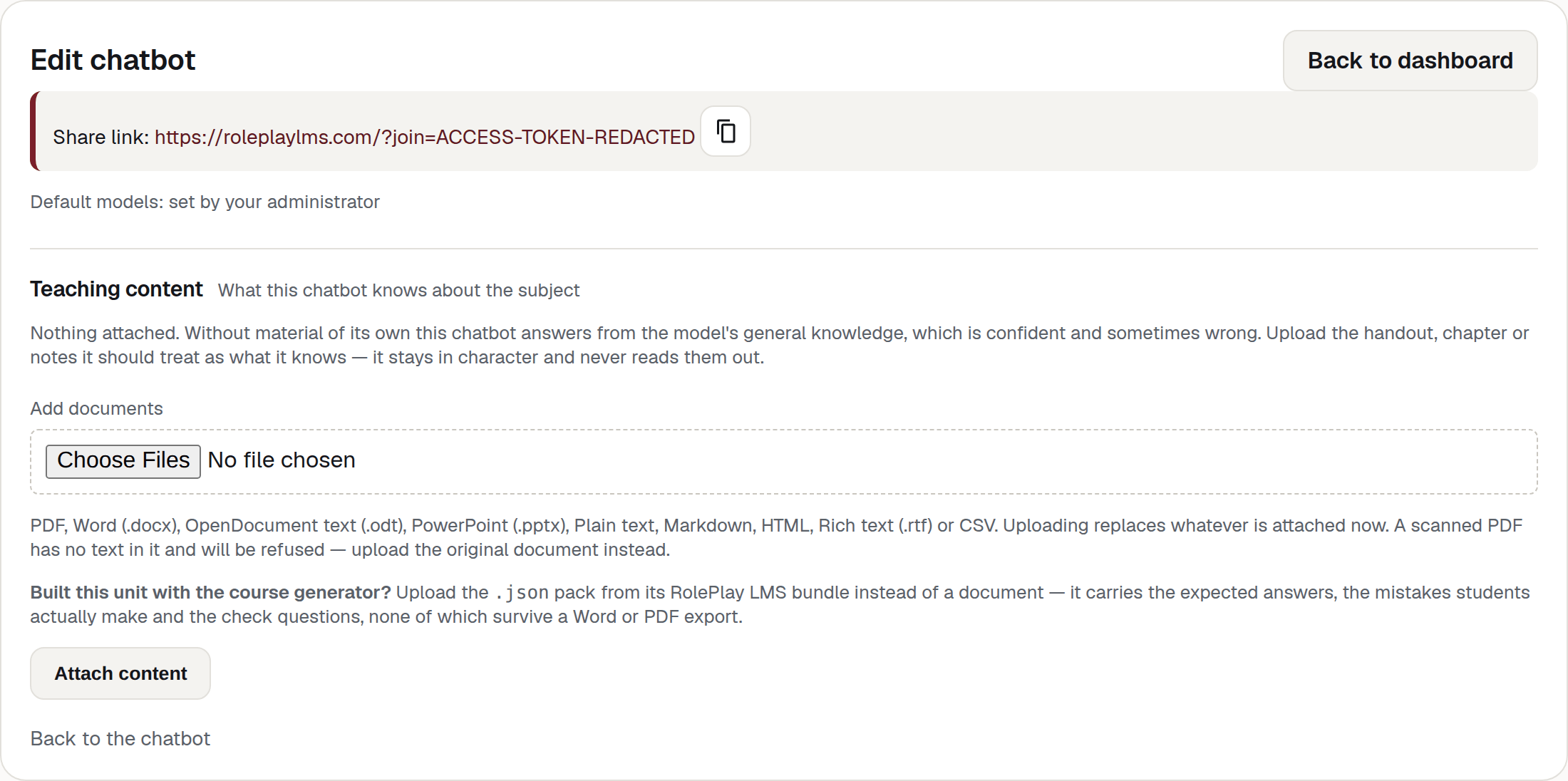
Nothing attached. Without material of its own this chatbot answers from the model’s general knowledge, which is confident and sometimes wrong.
What follows depends on the behaviour mode:
- a Teacher-mode chatbot is told to upload the handout, chapter or notes it should teach from;
- everything else is told to upload the handout, chapter or notes it should treat as what it knows — it stays in character and never reads them out.
In Teacher mode, the material is framed as content to teach. In Roleplay and Custom modes, it is framed as background knowledge to use while staying in character.
Attaching documents
- Open the chatbot from your dashboard and choose Teaching content.
- Under Add documents, choose one file or several.
- Press Attach content.
You can do the same thing while creating a chatbot: step 6 of the wizard carries the same Add documents control, and From my materials moves it to step 2.
Warning
Attaching replaces what is there
Uploading replaces whatever is attached now. There is no append. To add a second document to an existing set, upload every document you want the chatbot to have, together, in one go.
File types
PDF, Word (.docx), OpenDocument text (.odt), PowerPoint (.pptx), Plain text, Markdown, HTML, Rich text (.rtf) or CSV.
Anything else is refused by name rather than quietly mis-read — That file type is not supported. A .doc renamed to .docx is still a .doc, and it is refused too.
One file may be up to 25 MB. Past that you get the size back in the message — That file is 41.2 MB. The limit is 25 MB.
The .json pack
If the unit was built with the course generator, its RolePlay LMS bundle contains a .json pack. Upload that instead of a document. The pack carries the expected answers, the mistakes students actually make and the check questions, none of which survive a Word or PDF export — exporting a generated week as a document and re-uploading it keeps the prose and loses everything that makes a tutor teach rather than recite.
A pack wins outright over documents uploaded in the same go, and the message says so: The other file(s) were ignored: a pack already contains the material.
Why a scanned PDF is refused
A scanned PDF may contain pictures of text rather than readable text. If the app cannot extract any words, it refuses the file:
Warning
No text could be read from that PDF
It is most likely a scan or photos of pages, which contain no text to extract. Upload the original Word document, or run the PDF through OCR first.
The same guard catches a file that is technically readable but nearly empty: That file contains almost no text (7 words). And a file that cannot be opened at all: That file could not be read. It may be password protected or damaged. A password-protected PDF has to be unlocked before it can be uploaded.
Why too much material is refused rather than trimmed
There is a ceiling on how much one chatbot can hold, and going over it is an error, not a silent truncation:
Warning
That is too much material for one tutor
A tutor can hold roughly 9,000 words well. Upload the chapter or section this bot should teach, or split it across more than one chatbot.
The app refuses content above the hard limit instead of silently cutting it off.
Below the hard limit, a large upload can still produce this warning: This is a lot for one tutor; if it starts skipping things, split it across more chatbots. If that happens, divide the material into smaller topic-based chatbots — one per topic, week or element.
Several files can be attached together and one of them can fail while the others succeed. The message covers both: 3 documents attached (…) — 4,120 words. Not attached: scan-of-handbook.pdf: No text could be read from that PDF…
What you see once something is attached
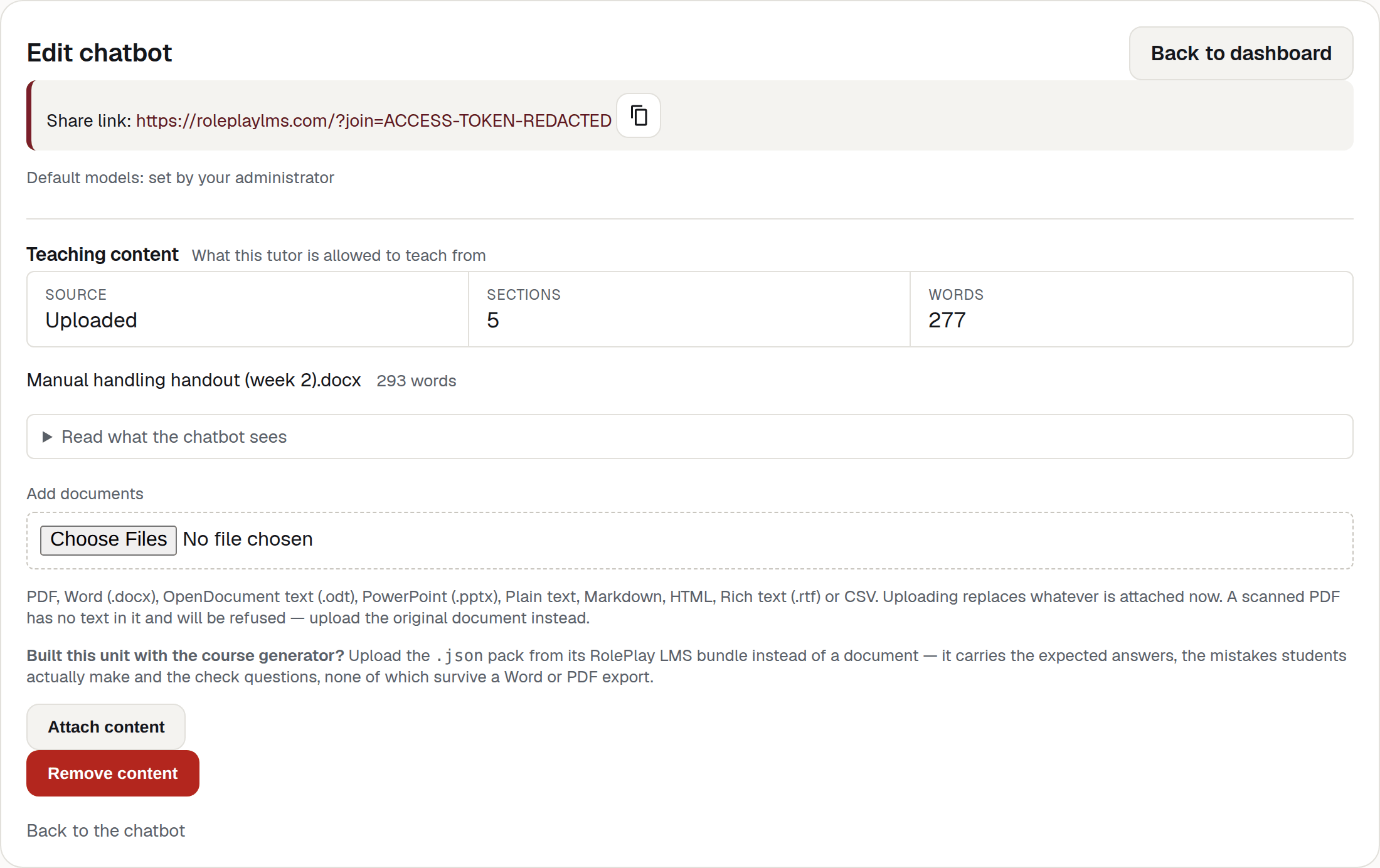
The facts strip
Three facts, and the same three appear on the edit overview.
| Fact | What it means |
|---|---|
| Source | Uploaded — you attached these documents. Course generator — the material came with a generated unit. |
| Sections | How many parts the material was split into. Your own headings are the seams, so a well-structured document splits well. |
| Words | The total across every section. |
Under the strip is the list of files it came from, each with its own word count, so you can see when a long document contributed almost nothing. The per-file counts can sit above the Words figure in the strip: the strip counts the narration text only, while each file’s count includes headings the app detected and lifted into page titles.
A chatbot whose material came from the course generator carries a note: This content came from the course generator and is rebuilt when the unit is regenerated. Uploading here replaces it until the next rebuild.
Read what the chatbot sees
A control below the facts strip, opening onto the material exactly as the chatbot receives it.
Use this control to check what was extracted. If the chatbot’s answers do not match your unit, compare this content with the source document and the chatbot prompts.
Warning
Do not show this to a class, and do not paste it anywhere
What it opens contains your own course prose and, for generated units, the expected answers. It is a teacher’s diagnostic. Anything visible in it is material a student is meant to work for.
Remove content
Remove content detaches everything, after asking: Remove this chatbot’s teaching content? It will answer from the model’s general knowledge until you attach more. Afterwards the panel says Teaching content removed. This chatbot now has no material of its own.
Content and copies
Teaching content is copied on every route: Duplicate on the dashboard, starting from a template in the create wizard, and choosing a template through your LMS content chooser. If you also upload documents while creating the copy, the new upload replaces the inherited content. See Choosing the content.
Check the Teaching content row on the edit overview after copying. It says Source — Not set when there is nothing attached.