Inside your LMS
Opening the activity
What a student meets when they click the activity, and what you meet
Most students open RolePlay LMS from an activity on their course page. It normally opens inside the LMS and uses their LMS sign-in. The exact display depends on how the activity is configured in your LMS.
What a student sees
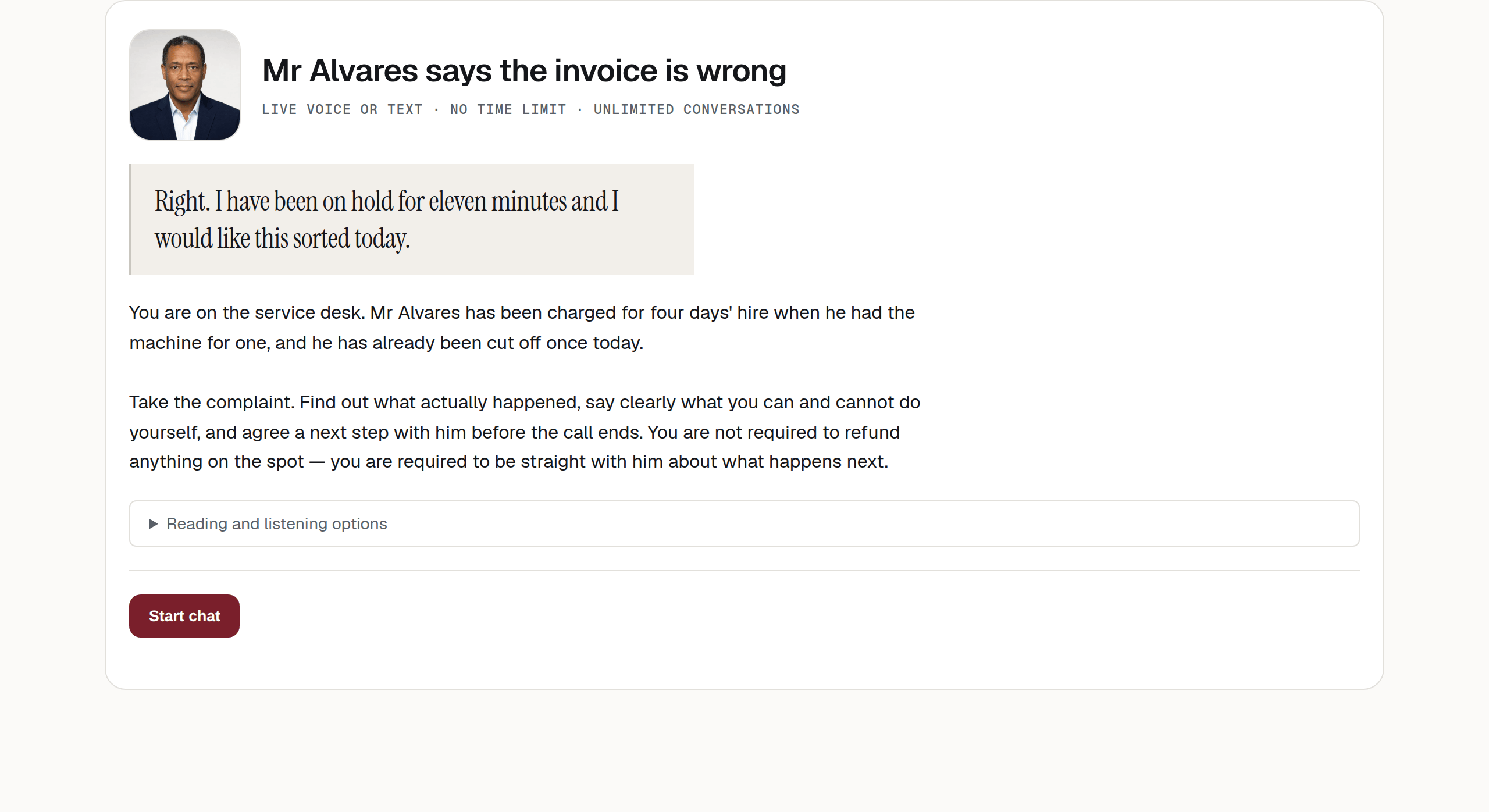
Top to bottom:
- The character’s picture and the chatbot’s name. The name is whatever the activity is called in your LMS — see Renaming an activity.
- The facts line. Three facts, separated by dots, and all three are read from the chatbot’s settings:
- how they answer — Speak or type, or Live voice or text when live voice is switched on;
- how long they have — No time limit, or N min limit;
- how many goes they get — Unlimited conversations, or Conversation 1 of 3. A conversation already under way still counts as the one it started as, so resuming does not use up another attempt.
- The character’s first line, when the chatbot has been set to speak first. Otherwise, the student starts.
- The instructions you wrote for students to read before they begin.
- Reading and listening options.
- Start chat.
Note
The same time and conversation limits apply after the student starts.
Reading and listening options
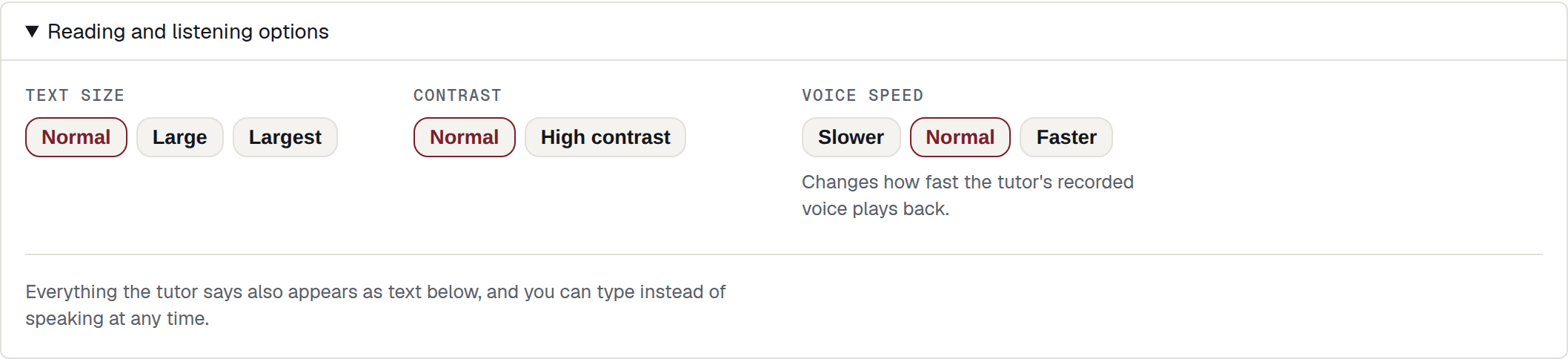
Every student gets this panel. It is not tied to any setting or claimed learning style. It offers Text size (Normal, Large, Largest), Contrast (Normal, High contrast) and Voice speed (Slower, Normal, Faster), and it ends with:
Everything the tutor says also appears as text below, and you can type instead of speaking at any time.
More on this in Accessibility.
What you see
The same page, with the bar across the top added — Activity, Responses, and sometimes Edit chatbot and Dashboard. Which items appear depends on your role and how the integration was set up — see The bar across the top.
There is no separate RolePlay LMS header or Log out button inside the activity. Use your LMS to sign out.
Warning
Pressing Start chat as a teacher is a test, not a submission
If a staff member opens the activity and has a conversation, it is saved with a Test badge. Test conversations do not use a student attempt, are not marked and are not sent to the gradebook. They may count towards practice usage on an individual plan; organisation billing excludes teacher tests.
When the page does not open
The activity may not open if its link is no longer valid, the student has used all allowed conversations, or the chatbot belongs to another organisation. The student sees the reason before the conversation starts. See When something goes wrong.
What happens next
After the student ends the conversation, they may see written feedback if the chatbot allows it. A rubric mark is held until a teacher reviews and commits it. A completion-only result is sent automatically when the student finishes. See Releasing a mark.
Their conversation appears in Reading conversations as soon as they finish.