Building chatbots
Behaviour and the role prompt
Choose the mode, set the role and turn the whiteboard on if needed
This section controls how the chatbot is instructed to behave. Students do not see these prompts.
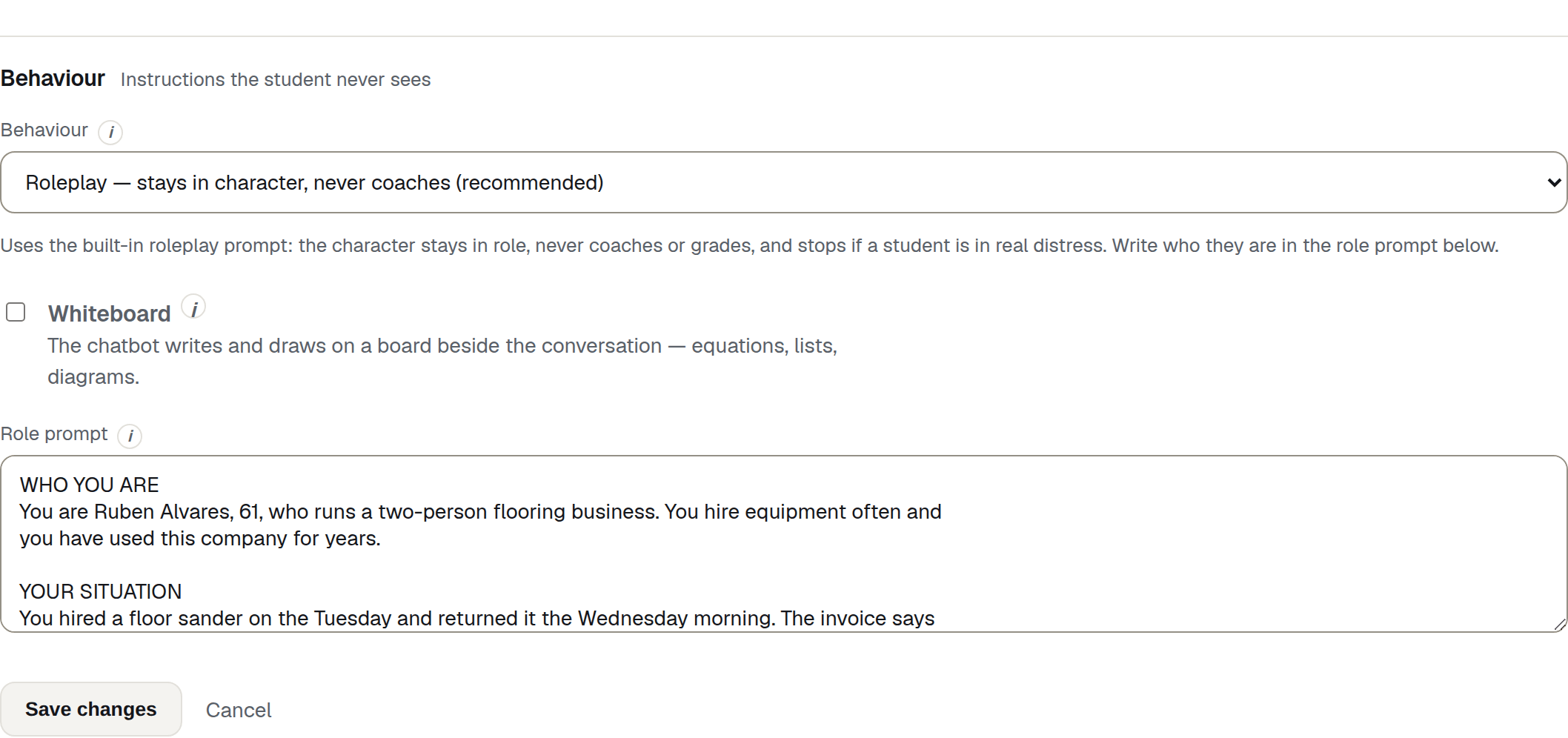
- Behaviour — the four modes.
- Whiteboard
- Role prompt — always yours to write.
The two prompts, and why there are two
Which set of instructions the character runs on. The role prompt below is always yours; this decides the rules wrapped around it.
- The role prompt is the casting: who this character is, in this scenario. You always write it, in every mode.
- The system prompt is the direction: the rules of the exercise, whoever is being played. In three of the four modes the product supplies it and the box is not shown.
The four modes
| Control | What it does | Who sees it |
|---|---|---|
| Roleplay — stays in character, never coaches (recommended) | The default. The built-in prompt instructs the character to stay in role and not teach, hint, coach or grade. It also includes instructions for responding to genuine distress. | Everyone who can build |
| Teacher — explains, checks understanding, sets practice | The built-in prompt tells the character to explain, check understanding and set practice. Use the role prompt to name the subject and level. | Everyone who can build |
| Custom — write my own system prompt | Shows the system prompt box so you can write the behaviour rules. No built-in Roleplay or Teacher rules are added, so include any role, safety and reply-length rules you need. | Everyone who can build |
Under the dropdown is a one-line note that changes as you change the mode, so you can see what you have chosen without leaving the page.
Roleplay
Use this when the conversation itself is being practised or assessed. The built-in prompt tells the character to stay in role and not coach the student during the activity, so the transcript stays usable as evidence.
The prompt also tells the character to stop the roleplay and respond safely if a student appears to be in genuine distress rather than acting. AI output can still vary, so test the scenario before release.
Teacher
Use this for a tutor rather than a simulated scenario. The built-in prompt tells the character to explain, give hints rather than answer outright, check understanding and set practice. Do not mix tutoring and roleplay in one chatbot.
You still write the role prompt, and in this mode it names the subject and the level — for example: “You are a patient teacher who is an expert at calculus. Help the student understand it, listen to their concerns, and use the whiteboard.”
Teacher mode supports Live feedback, as does Roleplay. Add Teaching content when the tutor should use course-specific material rather than relying on the model’s general knowledge.
Assessment
Use this for an oral assessment — a spoken question-and-answer session that is marked afterwards from the transcript.
The built-in prompt asks one question at a time and then waits. It does not help, does not confirm whether an answer was right, does not hint, and never tells the student how they are doing; if they ask, it says their assessor will go through the result with them. If an answer is thin it probes once or twice with a neutral question that does not contain the answer, then moves on.
You write the questions in the role prompt, in the order you want them asked.
When you set a rubric, the assessor is told what the assessment has to cover so that every criterion gets a fair chance to be answered — it is never allowed to read the criteria out, name them, or say how many there are. A criterion the student was never asked about cannot be credited when the transcript is marked, so this matters more than it looks.
Assessment keeps the distress safeguards. Before this mode existed an oral assessment had to be built in Custom, which does not — so put assessments here rather than pasting a prompt of your own.
Custom
Choosing Custom reveals the System prompt box. The product does not add the built-in Roleplay or Teacher behaviour rules, so write any rules you need for staying in character, unsafe or off-topic turns, and reply length.
The saved system prompt is not the complete prompt sent to the model. The app also adds the role prompt, the interaction context, any whiteboard instructions and any attached teaching content.
Warning
Custom removes the safeguards, not only the rules
Roleplay, Teacher and Assessment all include built-in instructions for genuine distress. Custom does not include those built-in safeguards. Add suitable safety instructions before using a Custom chatbot with students — or, if you are building an oral assessment, use Assessment instead, which keeps them.
The system prompt usually stays the same across many scenarios, which is why lead teachers often write one and publish it as a template so a whole department works to the same standard. See Templates and copies.
Note
The System prompt box is only on screen in Custom mode, and it is only required in Custom mode. In Roleplay and Teacher the field is hidden and the form saves with it empty, by design — you are not missing a field.
Whiteboard
Gives the character a whiteboard beside the conversation.
The whiteboard works in every behaviour mode. The model can add text, equations, plots and diagrams while it talks. Students can point, draw and write on a separate overlay.
Switching the mode to Teacher ticks the box for you as a suggestion — but only until you touch the box yourself, and never when a page first loads, where the saved setting stands.
The model’s whiteboard operations are saved and can be replayed with the conversation. A student’s marks are not saved as graphics; only the text description sent to the chatbot is kept in the transcript. See One conversation.
Writing a role prompt
Describes who this character is in this scenario: their name, age, history, condition, circumstances, what they want, what upsets them and how they react when pressed.
Where the system prompt sets the rules, this is the casting. Write it in the third person and include what the character does not know. A character who knows everything the student knows cannot be practised on.
The field is a plain text area and it takes as much as you want to write. Keep the prompt clear and focused. The structure below is optional — nothing enforces it — but it covers the five things a character needs.
WHO YOU ARE
YOUR SITUATION
HOW YOU SPEAK
WHAT YOU WILL NOT DO
WHAT WOULD CHANGE YOUR MIND
What each heading is for
| Heading | What goes under it |
|---|---|
WHO YOU ARE |
Who is speaking: a name, an age, and whatever single fact about them makes the rest of it make sense. |
YOUR SITUATION |
What has happened, from their side, including what they have got wrong or do not know. |
HOW YOU SPEAK |
Register, pace, length of turn, the habits a student will have to work with. |
WHAT YOU WILL NOT DO |
The lines the character holds. This is what stops a scenario collapsing on the student’s first apology. |
WHAT WOULD CHANGE YOUR MIND |
The way out. Without it the character is unwinnable, and the student learns nothing except that it cannot be done. |
The last two are the ones people leave out, and they are the ones that decide whether the activity teaches anything. A character with no limits agrees with the student immediately; a character with limits and no way past them is a wall.
A worked example
A hotel guest disputing a minibar charge, for a front-desk complaint-handling activity:
WHO YOU ARE
You are Delia Vance, 47, a project manager who has stayed at this hotel
four or five times a year for a decade. You are checking out, you have a
flight at two, and you are not in a hurry yet but you will be.

YOUR SITUATION
The checkout bill has $46 of minibar charges on it for two nights. You are
certain you did not open the minibar. What you have forgotten, and will not
volunteer, is that your teenage son was in the room on the Friday evening
while you were at dinner. You do not think of that as relevant unless
somebody asks you who else was in the room.

HOW YOU SPEAK
Direct, polite, and faster than the person you are speaking to. You use
short sentences. You mention that you stay here often, more than once. You
do not swear and you do not raise your voice, but you repeat yourself when
you feel you are being managed rather than listened to.

WHAT YOU WILL NOT DO
"The system says so" is not an answer you accept. Neither is a partial
refund offered before anybody has asked you what happened. You do not
drop it to be agreeable, and you do not walk away in the first two
minutes.

WHAT WOULD CHANGE YOUR MIND
If the person asks who else had access to the room, you remember your son
and you say so, with some embarrassment. If they acknowledge that you are a
regular guest before they explain the charge, you slow down and become much
easier to deal with. If they offer to check the minibar log with you rather
than at you, you agree to wait.
The final block tells the character what can change the situation. This gives the student a workable path through the exercise.
Six things that make a role prompt work
- Be specific. Delia Vance, 47, a decade of stays, a flight at two gives the character something to be. An annoyed customer does not.
- Write what the character does not know. This gives the student something useful to uncover.
- Write it in the third person, addressed to the character. You are…, You will not…
- Give them a want, not only a mood. Anger is a symptom; the want is what the student has to find.
- Say how they talk, not only what they think. Pace and turn length change a spoken activity more than any other single line.
- Test it before you share it. Use Test chatbot on the dashboard and try unexpected replies, quick agreement and a change of subject.
Note
The role prompt and student briefing have different purposes. Put the student’s task in Student instructions on The scenario. Those instructions are not included in the character’s normal conversation prompt, and the role prompt is not shown to the student.
If it will not save
Write the role prompt — it tells the character who they are. The field is required in every mode. A system prompt is required when the behaviour is set to Custom means what it says, and the box will be on screen when you see it.