Inside your LMS
One conversation in full
The response detail page, top to bottom
Open a row from Reading conversations to see the transcript, rubric result, feedback and review controls.
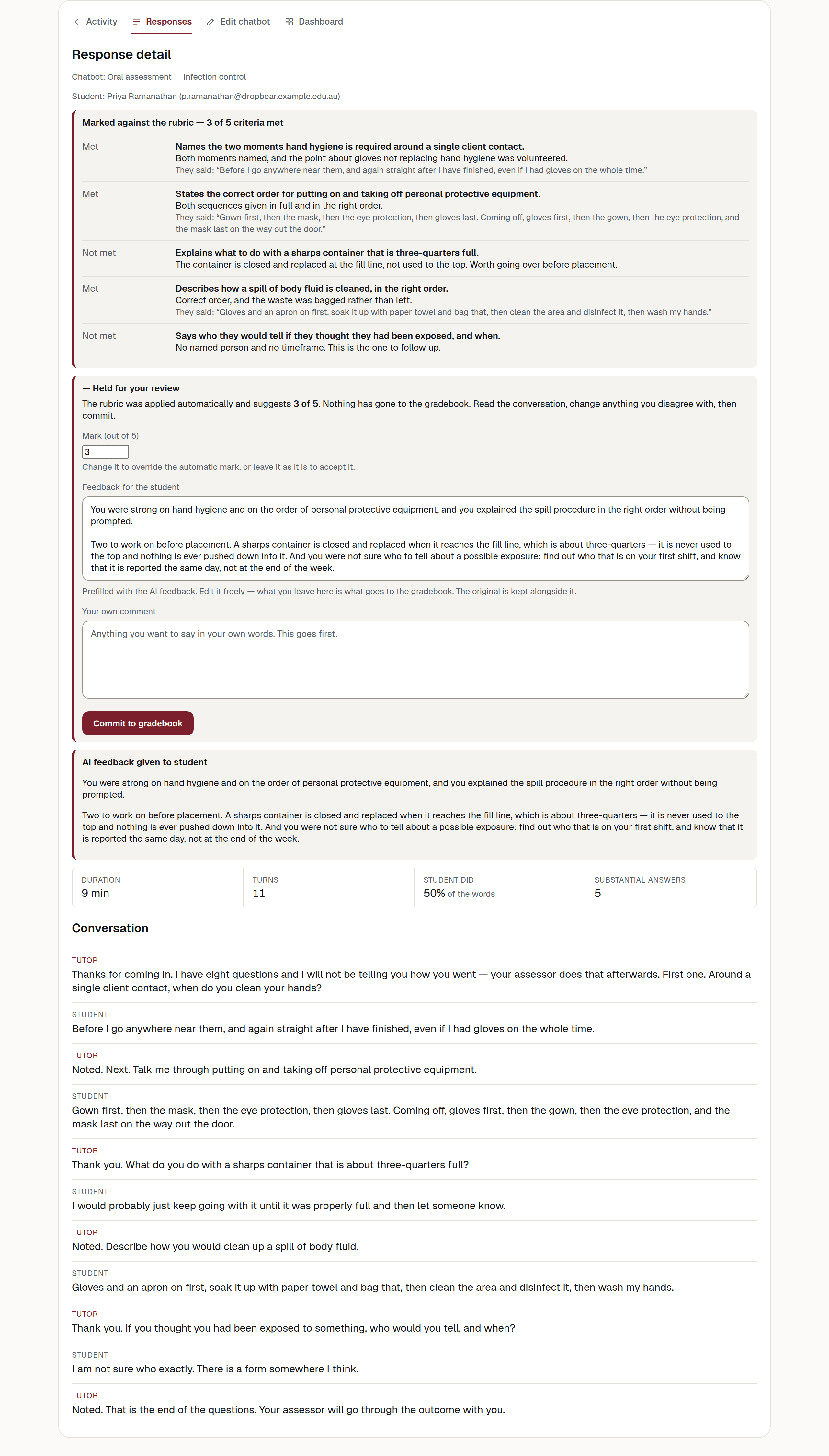
The header lines
Under the heading you get, in order:
- Chatbot — which chatbot this conversation was with.
- Student — their name and email address. A teacher’s own test conversation shows their name with “(Teacher)” after it.
- Rating — N / 5, only if the student left one on the thank-you screen.
The audio
If the selected response has a combined recording, an audio player appears here. In a memory thread, this player covers the selected part rather than every sitting. Individual spoken turns may also have their own player in the transcript.
There is no player when the student typed the response or when its recording is not ready.
The rubric panel
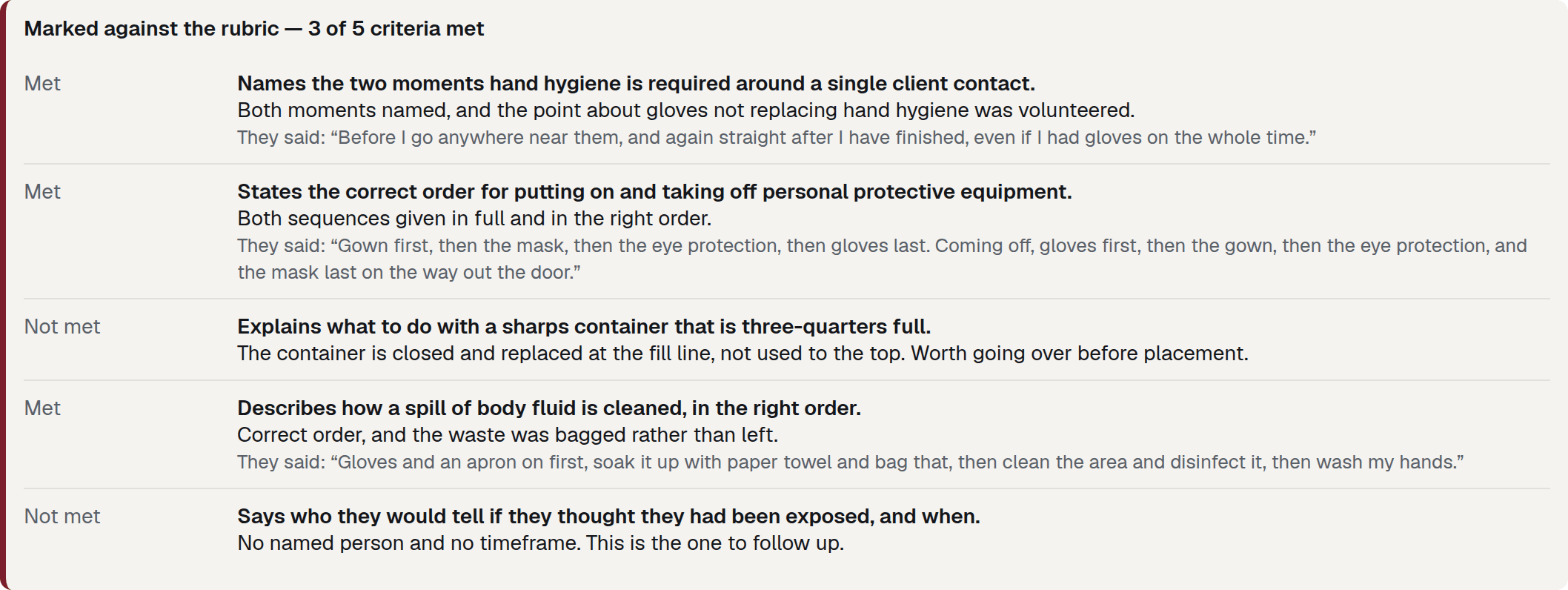
The heading counts what was met: Marked against the rubric — 3 of 5 criteria met. Then every criterion in turn:
- Met or Not met;
- the criterion name returned with the marking result;
- a one-line reason;
- the student’s own words quoted back after They said:, where the marking could point at them.
A Met criterion is only counted when the result includes a matching quotation from the student. Use the quotation and transcript to check the result. A Not met criterion can be counted without a quotation.
Criteria that were not counted
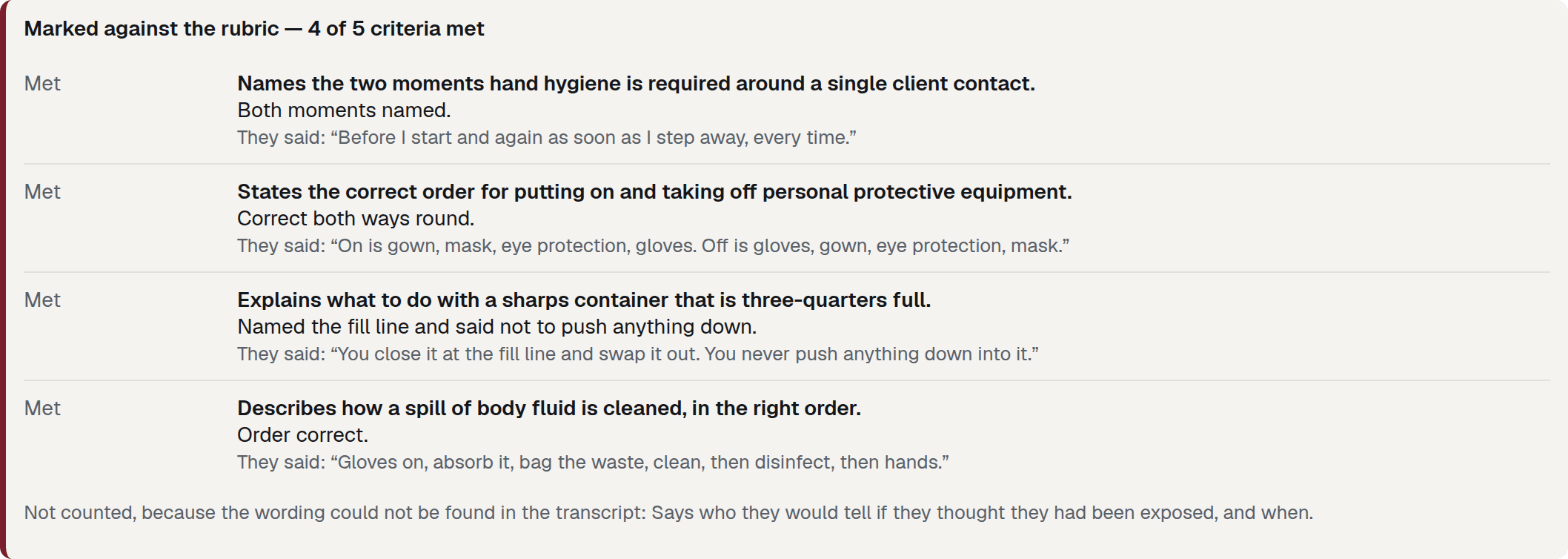
Below the list you may see:
Not counted, because the wording could not be found in the transcript: …
A criterion lands here when it was marked Met but the supporting quotation could not be verified in the transcript. It is removed and the total is recalculated. This rule does not remove criteria marked Not met.
Note
If the same criterion is repeatedly not counted, review the transcript, scenario and rubric. Change the rubric in Additional settings if needed.
The review panel
For rubric-marked LMS activities, the panel shows Held for your review or Sent to the gradebook. See Releasing a mark.
Feedback
Two blocks, and they are different things:
- Feedback — the note the student wrote to you on the thank-you screen, next to their star rating. Only present if they wrote one.
- AI feedback given to student — feedback generated at the end of the conversation, when that option applied. Assessable roleplay and custom chatbots do not show immediate end feedback. The review box may therefore be empty.
What happened, in numbers
A short strip of figures, all of them derived from the conversation itself. None of them is a mark.
| Control | What it does | Who sees it |
|---|---|---|
| Duration | Minutes recorded for the selected response. In a memory thread, this is not the total for every part. | Every reviewer |
| Turns | How many turns the transcript holds, both speakers. | Every reviewer |
| Student did … % of the words | The student’s share of the talking. | Every reviewer |
| Substantial answers | How many of the student’s turns ran to more than ten words — a count of real answers rather than “yes”. | Every reviewer |
| Steps produced | Teacher Mode only. How many steps the student worked out themselves. | Every reviewer |
| Answers given away | Teacher Mode only. How many times the chatbot supplied an answer instead of drawing it out. Marked when it is above zero. | Every reviewer |
If the student did less than about a third of the talking, a line appears under the strip:
The tutor did most of the talking here. Worth reading.
This is a review prompt, not a mark. Read the transcript to decide whether the chatbot spoke too much.
The transcript
Headed Conversation, turn by turn. Each turn is labelled Tutor, Student, or Teacher (test) when a teacher was testing.
Turns can carry extras:
- What the tutor did on this turn — a short tag beside the speaker on a Teacher Mode conversation, naming the teaching move, the criterion it was working on, and whether the student produced the step or showed a misconception.
- Audio — a player on any turn that was spoken.
- The whiteboard, replayed.
The whiteboard replay
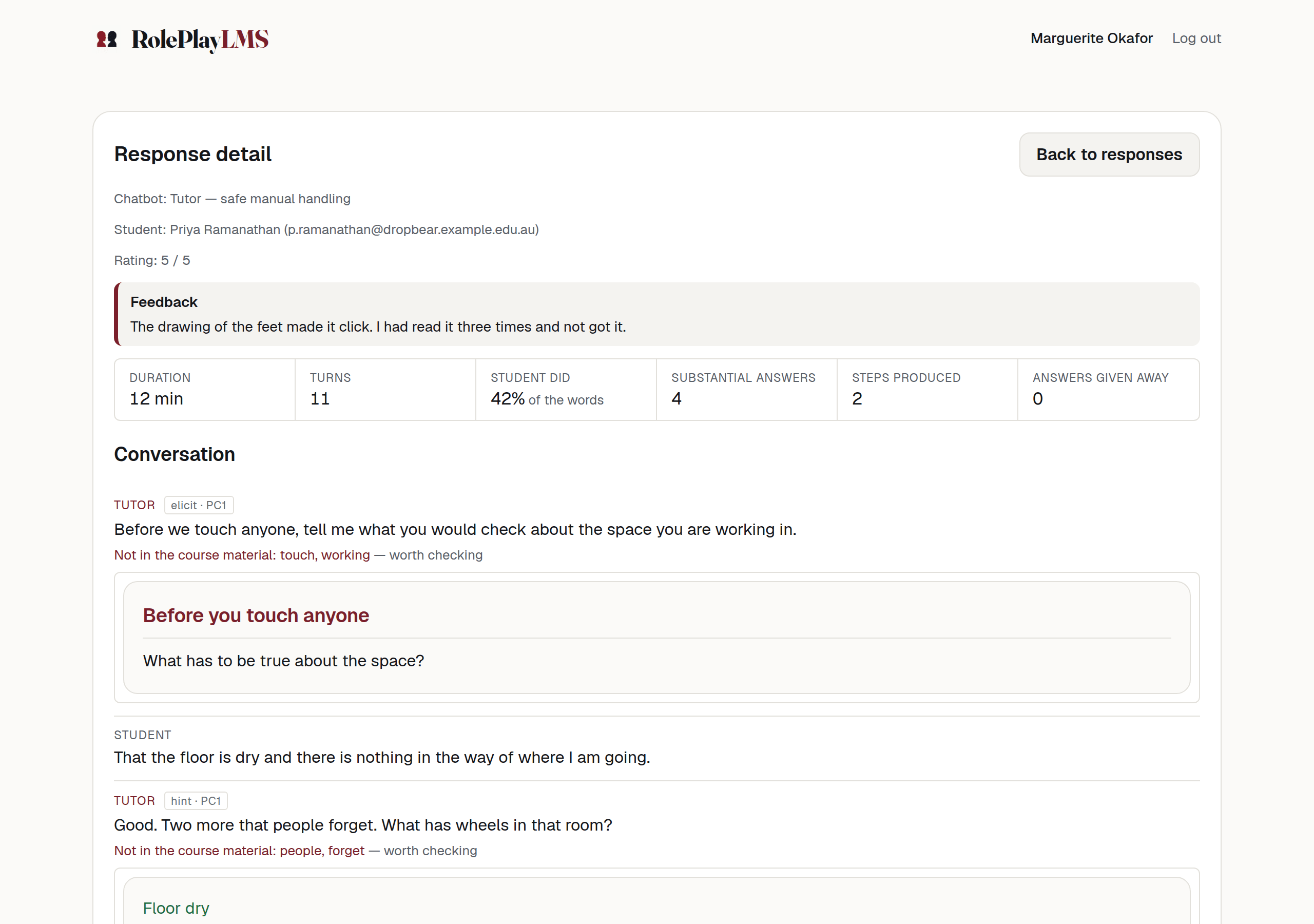
When the chatbot used the whiteboard, its drawing appears under that turn. If it cannot be redrawn, the page shows “Whiteboard for this turn.” The rest of the transcript remains available.
The “not in the course material” flag
Some tutor turns carry a line like:
Not in the course material: terms — worth checking
It means the turn used terms not found in the teaching content or scenario. Check the turn yourself. Paraphrasing can trigger the flag. The flag does not hide the turn or change the mark, and the student was never told.
Note
The flag requires attached teaching content. Without it, there is no source text for this comparison. See Teaching content.
When the page will not open
Response not found. can mean the response was deleted or you do not have access to it. Return to Responses or check that you opened the correct course activity. See When something goes wrong.