What your students see
Finishing
Ending or pausing, the thank-you screen, and what comes back to you
A student can finish a conversation, pause it when memory is on, reach the time limit, or leave the page without finishing.
End, or Pause and Finish
What buttons a student has depends on one setting — Remember each student, in Additional settings.
| Control | What it does | Who sees it |
|---|---|---|
| End conversation | Hands the conversation in. The only ending button on a chatbot that does not remember students. | Students |
| Pause — continue later | Saves and closes without handing in. No feedback or mark is sent. The next visit resumes it while the memory thread is still available. | Students, on a chatbot with Remember each student on |
| Finish and hand in | The deliberate ending. This is what produces the thank-you screen and, in an LMS activity, a result. | Students, on a chatbot with Remember each student on |
With memory on, Pause shows Saved. You can pick this up next time. It does not show the thank-you screen, generate feedback or send a result. By default a paused thread can be resumed for 30 days, measured from the start of the last sitting; an administrator can configure a different period.
Note
Without memory there is nothing to come back to, so every close is a finish however it was asked for. A student on a one-shot assessment cannot pause it by accident.
Warning
A student who closes the tab has not handed in
Closing the tab does not hand in the conversation. The transcript remains saved, and background tasks later meter stale conversations. LMS-linked conversations may also be graded or held for review after 12 hours, but the Unfinished badge is not currently reliable because the earlier stale sweep can prevent that label being set. Tell students to use the finish button when a result matters.
The thank-you screen
Finishing replaces the conversation with a confirmation: Thank you! and Your conversation has been submitted. You can close this tab.
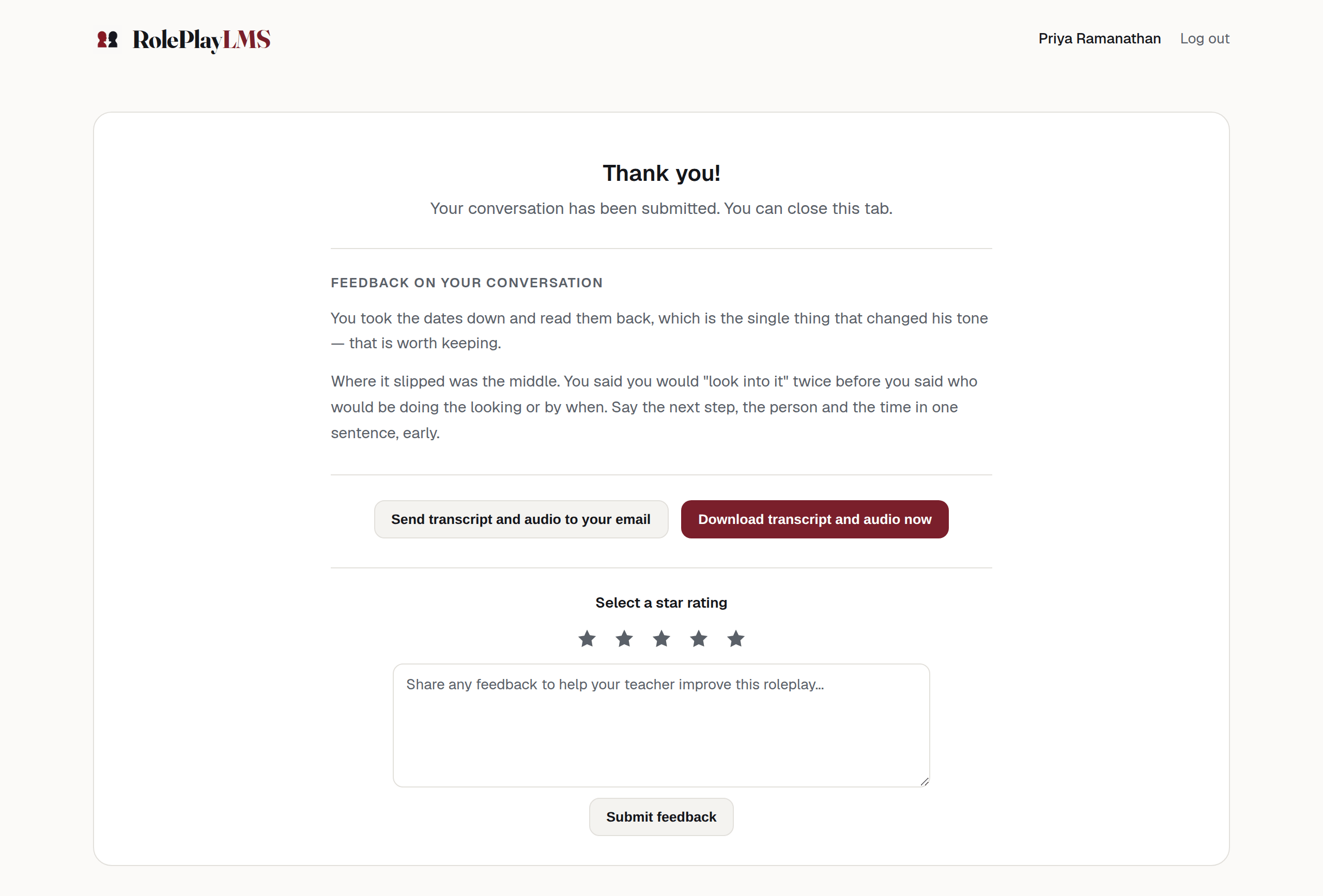
- The AI feedback, if Live feedback is on.
- Their own copy of the transcript, by email or download.
- The star rating and note, which come back to you.
Warning
LMS result status is not visible on the thank-you screen
The app receives a message saying whether the result was sent or held for review, but it currently writes that message into the conversation area just before hiding it. Students see the submission confirmation, not the LMS result status. Teachers should check the LMS gradebook or response review screen.
The feedback the student reads
You will only see this if you switched Live feedback on
A panel headed Feedback on your conversation appears on the thank-you screen. While it is being written the student sees Reviewing your conversation…; the finished feedback then replaces it.
The feedback is written from the whole transcript, addressed to the student, and is theirs to read there and then. If it cannot be produced, the panel says We could not load your feedback right now. Try again in a moment. and offers Retry — the conversation itself is already saved either way.
You see the same text. It appears on the conversation under AI feedback given to student, rendered exactly as the student read it, and in an LMS activity it is what prefills the feedback box in the assessor panel — so you can edit it before anything reaches the gradebook.
Note
Live feedback is available on Roleplay and Teacher chatbots that are not sending a rubric mark. Use it for practice rather than for an assessment — see Additional settings.
Their own copy
Two buttons let the student keep the conversation.
| Control | What it does | Who sees it |
|---|---|---|
| Send transcript and audio to your email | Emails the transcript and the recording to the address on their account. The status line reports Sending email… and then names the address it went to. An account with no valid address is told so rather than told nothing. | Students, on the thank-you screen |
| Download transcript and audio now | Builds the same package as a download. The status line reports Preparing your download… and then Download ready. | Students, on the thank-you screen |
The package can only be built when both a transcript and combined audio file are available. It also includes saved AI feedback when present. If audio preparation failed, neither button can provide a transcript-only package.
Warning
Neither button is a substitute for handing in
The download is a copy for the student. Your record is the conversation in Reading conversations, which exists whether or not they took one.
The rating and note that come back to you
Below that sits an optional rating: five stars, a comment box placeholdered Share any feedback to help your teacher improve this roleplay…, and Submit feedback. A student who presses submit without choosing a star is told Please select a star rating; a successful one gets Thanks for the feedback!
Both land on the conversation when you open it:
- the star rating as a line reading
Rating: 4 / 5 - the comment in a panel headed Feedback
It was hard to get a word in, which I think was the point.
Use this as feedback on the activity. Where it appears is covered in Reading one conversation.
Note
The rating block is optional. It has two known accessibility defects: the stars do not report the selected value to a screen reader, and the comment box has no accessible name. See Accessibility. No assessment path depends on either control.