Building chatbots
Templates and copies
Publishing a chatbot for other teachers, and keeping sight of what they do with it
A template is a chatbot that other teachers in your organisation can copy. Each copy has its own link, owner and conversations. What its owner can edit depends on their role.
Publishing one
Tick Available as a template on Additional settings and save. The chatbot then:
- carries a Template badge beside its name on the dashboard;
- appears in the From a template route of the create wizard for everyone in your organisation who can build;
- appears in the dropdown a standard teacher gets instead of the wizard;
- appears in your LMS’s content chooser when somebody adds a RolePlay LMS activity.
Untick it and it drops out of all four. Copies already made are unaffected — they were independent from the moment they were created.
You will only see this if you are a lead teacher or an administrator
Lead teachers and administrators can publish templates. A standard teacher normally does not see this setting, and a copy is not automatically a template. On an LMS platform registered for authoring, a standard teacher may see this control. Publishing during creation is refused, but the same tick is honoured on an edit save — check the saved overview.
Note
Publishing a template makes it available inside your organisation. Sharing a template across institutions is a separate decision and there is no control for it on this form; ask your administrator.
What a copy is
A copy is a separate chatbot:
- its own share link, so students on the copy never reach the template;
- its own conversations, so two teachers running the same scenario never pool their evidence;
- its own prompts and settings, so later changes do not affect the template;
- owned by whoever made it, in their organisation — not yours.
Editing the template afterwards changes the template and nothing else. There is no relationship to re-sync and no “update from template” button: a copy is made once, and from then on it is somebody’s chatbot.
What does not come across
- A retired custom 3D character. The student view no longer renders these models, and the copy shows the static image instead. Uploaded or generated static images and built-in talking characters are copied.
- Template and sharing status. A copy is not automatically a template. A lead teacher can tick Available as a template while duplicating.
- The LMS result mode and marking rubric, on website copies. Copies made through the website create wizard or Duplicate come back on completion mode with no rubric. Copies created through the LMS content chooser carry both, along with the teaching content and limits.
Warning
Check assessment settings on a website copy
Teaching content comes across on every copy route. Website copies still differ from LMS-created copies because they do not inherit the result mode or rubric. Open the copy and check Teaching content and Sent to the LMS before release.
A template is never the activity
Picking a template in your LMS’s content chooser always creates a copy and attaches the copy — even when the template is your own, and even when you are the one who published it.
This keeps the template separate from the class. Student conversations and response counts belong to the copy, not the master template.
An ordinary chatbot you own is different: picking that attaches it as it stands, because doing so is a deliberate choice about one specific chatbot. See Choosing the content.
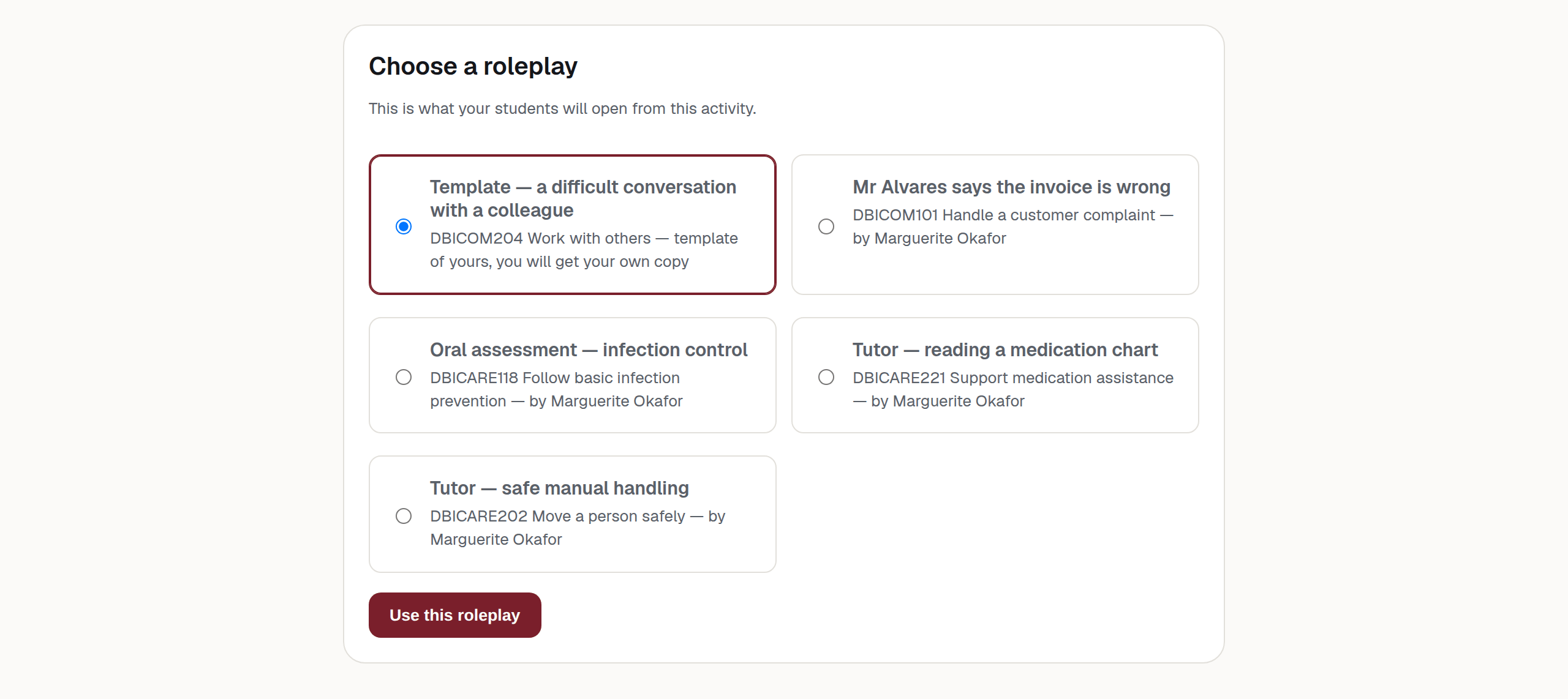
The copy is named so that two of them can be told apart: the unit code first, then the template’s name, then the course or activity it was created in — for example DBICOM101 — Handling a customer complaint (Communication 1, Sem 2). A copy made outside an LMS keeps the template’s name, so rename it yourself.
Seeing what happened to your templates
A lead teacher’s dashboard is headed Your chatbots and copies of your templates. It holds their own work, plus each copy made directly from one of their templates through the LMS content chooser. Copies made on the website — with the create wizard or Duplicate — are not linked back to the template and do not appear.
For the copies it does show, the lead teacher can:
- see how many copies exist, and which teacher each belongs to, in the Teacher column;
- narrow the list to one teacher with the Teacher filter;
- open a copy’s conversations and read how the scenario is actually going;
- edit a copy, if it has drifted from what the unit needs.
This visibility reaches one copy. A copy made from another copy does not appear, because it is not a direct copy of the lead teacher’s template.
Note
Owning the whole organisation’s list is a different role again. If you need every chatbot regardless of where it came from, that is an organisation administrator — see Who can do what.
Running a department on templates
Use this workflow:
- Complete the behaviour, role prompt, rubric and teaching content, then test the chatbot. See Behaviour and the role prompt.
- Give it a title that will still make sense as somebody else’s copy. Handling a customer complaint — front desk survives being copied; New bot does not.
- Tick Available as a template and save.
- Tell teachers what they should change on their copy — usually the title and the student instructions. If they copy through the website, remind them to restore and check the intended LMS result mode and rubric.
- Watch the copies from your dashboard for the first cohort, and fix the template — not each copy — when the same problem shows up twice.
Warning
A template with a share link is still a live chatbot
Publishing a template does not take it out of service. If somebody has its share link, students can use it and their conversations land on the master. If you see a Responses count climbing on a row with a Template badge, that is what has happened.