Inside your LMS
When something goes wrong
Find a message, understand it and choose the next step
The messages below are quoted from RolePlay LMS. If your message is not listed, note the time and what you were doing, then contact the person who supports your LMS integration.
The activity could not start
A failed launch shows This activity could not start followed by the reason.
| What you see | What it means | What to do |
|---|---|---|
| The LMS did not send a signed launch (missing id_token or state). | The request did not arrive as a proper launch. Usually a bookmarked or refreshed URL rather than a real click. | Go back to the course page and click the activity. If every student gets it, the integration needs re-checking. |
| The launch could not be verified. | The signature, the saved launch state, the timing or the registration did not check out — a misconfiguration, an LMS upgrade that changed a deployment, or a clock out of step. | Nothing a teacher can fix. Tell your administrator; it affects every student at once. |
| This activity belongs to an organisation whose RolePlay LMS account is currently suspended, so it cannot start. | The institution’s account is not in good standing. | Your administrator needs to contact RolePlay LMS. Nobody can launch anything until it is restored. |
| Could not identify the learner. | The launch did not carry a stable identifier for the person using it. Only that identifier is needed — releasing names or email addresses changes nothing. | Administrator. Usually a privacy setting in the LMS withholding the identifier. |
| Unsupported LTI message type. | The LMS sent something the tool does not handle. | Administrator. |
| No roleplay has been chosen for this activity yet. | The activity exists but nothing was attached to it. | Edit the activity and press Select content — see Choosing what an activity uses. |
| This activity points at a roleplay that no longer exists (or has been deactivated). | The chatbot was deleted or switched off after the activity was set up. | Press Select content again and pick a current one. |
| That roleplay belongs to a different organisation, so this LMS cannot launch it. | The token attached points at another institution’s chatbot. | Select content available to your organisation. Contact your organisation administrator if the required content is missing. |
| The roleplay attached to this activity is no longer available. | The chatbot was switched off between the activity being set up and this launch. | Press Select content again. |
| You do not have access to the conversations for this activity. | Your account has not been granted review access to this course activity. | Open the activity from the correct course as an instructor. If access is still refused, contact your LMS administrator. |
Note
More than three failed launches in five minutes raises an alert internally, because that pattern means a cohort has hit a wall. When reporting a launch problem, include a screenshot, the activity name and the time.
Opening a grade from the gradebook
Moodle’s Grade analysis link beside a grade opens the conversation the mark came from. Two of its answers are notices, not failures, and they come back with a heading of Nothing to review yet.
| What you see | What it means | What to do |
|---|---|---|
| This learner has not opened the activity, so there is no conversation recorded for them. | Exactly that. Normal for anyone yet to start. | Nothing. |
| This learner has opened the activity but has not held a conversation in it yet. | They reached the activity page and did not press Start chat. | Nothing, unless it is the day before the due date. |
| The LMS asked for a submission review but did not say whose. | The link did not carry a learner. | Open the conversation from Responses instead. |
Where a learner has several conversations, the one behind the mark is shown — the most recent that carries a score, and failing that their most recent conversation of any kind.
What a student can meet instead of the activity
These messages appear before the student starts a conversation.

| What the student sees | What it means | What to do |
|---|---|---|
| Project not found — The link may be invalid or the project is inactive. | The link is mistyped, or the chatbot has been switched off. | Check the activity still has content selected. On a shared link, reissue it. |
| Not available to your account — This roleplay belongs to another organisation. | A link issued by a different institution. The card names neither the chatbot nor the organisation, on purpose. | Give the student a link issued by your own institution. |
| No conversations left — You have used all 3 of your conversations with this chatbot. | The attempt limit is reached. | Raise the limit in Additional settings, or accept the attempt they had. |
| Time limit reached — You have used all the time available for this conversation. | The per-conversation time limit is used up. | Raise the limit, or let them start a fresh conversation if they have attempts left. |
| Practice minutes used up — This account has no practice minutes left. | The organisation’s practice hours are exhausted. | Your administrator adds hours. Nobody can start a conversation until they do. |
| Student access only — This roleplay link is for students and teacher testing. | The account opening it is neither a student nor a teacher. | Check who is signed in. |


Messages inside the teacher views
| What you see | What it means | What to do |
|---|---|---|
| Chatbot not found. | The chatbot was deleted, or your account does not have access to it. | Check the selected content and open the activity from the correct course. Contact your administrator if access should have been granted. |
| No responses yet. | Nobody has held a conversation with this chatbot. | Nothing. Expected on a new activity. |
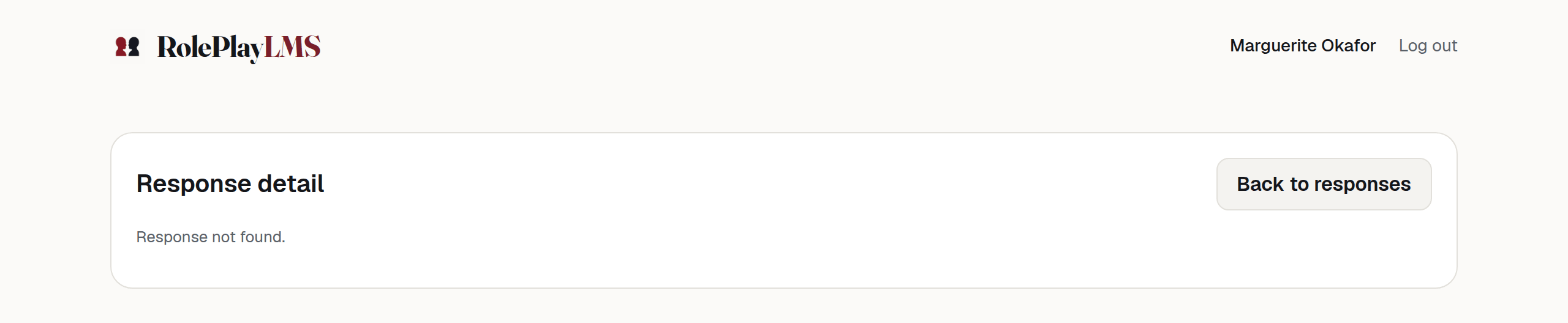
| Response not found. | The response was deleted, or your account does not have access to it. | Return to Responses and check that you opened the correct course activity. |
| Manage this on RolePlay LMS | You reached an authoring screen inside the LMS without the permission for it. | Use the button to open roleplaylms.com in a new tab. See The bar across the top. |
Messages during and after a conversation
| What is said | What it means | What to do |
|---|---|---|
| Saved. Your teacher will review your conversation before your result goes to your LMS. | Normal. The rubric ran and the mark is held for you. | Open it under Responses and release the mark. |
| Result sent to your LMS. | A completion-only activity. Finishing is full marks and there was nothing to review. | Nothing. |
| Saved, but the result could not be sent to your LMS. Your teacher can still see it here. | The conversation is safe; the LMS could not be reached. | Read it under Responses. If it shows as held, commit it; if not, enter the mark in your LMS by hand. |
| Saved. You can pick this up next time. | The student paused rather than finished, on a chatbot with memory. Nothing has been handed in. | Nothing. It is not an unfinished submission — the thread stays resumable. |
| Unable to finish conversation. Please try again. | The browser could not complete the hand-in. | Ask the student to press End conversation again. The transcript is already saved. |
Warning
A conversation nobody ended is not a conversation nobody had
If a student closes the tab without selecting End conversation, the response is not submitted at that moment. A scheduled process closes a conversation twelve hours after its last message; it runs every ten minutes, so closed conversations appear through the day. Rubric-marked responses are then marked and held for your review.
Things that look broken and are not
- No RolePlay LMS header or Log out control inside the LMS. Use your LMS navigation and sign-out control.
- No grade for a result with Awaiting review. The rubric mark has not been committed. A committed mark shows its score and comment in the gradebook.
- The same chatbot shows different conversations to different teachers. Course access can limit which conversations each teacher sees. Owners, lead teachers and administrators can have wider access.
More explanations and next steps are in Common messages.