Building chatbots
Additional settings
Feedback, memory, limits, templates — and what goes back to the gradebook
Use these settings for feedback, memory, time and attempt limits, templates, and LMS results. Check the LMS result mode and rubric carefully before students use an assessed activity.
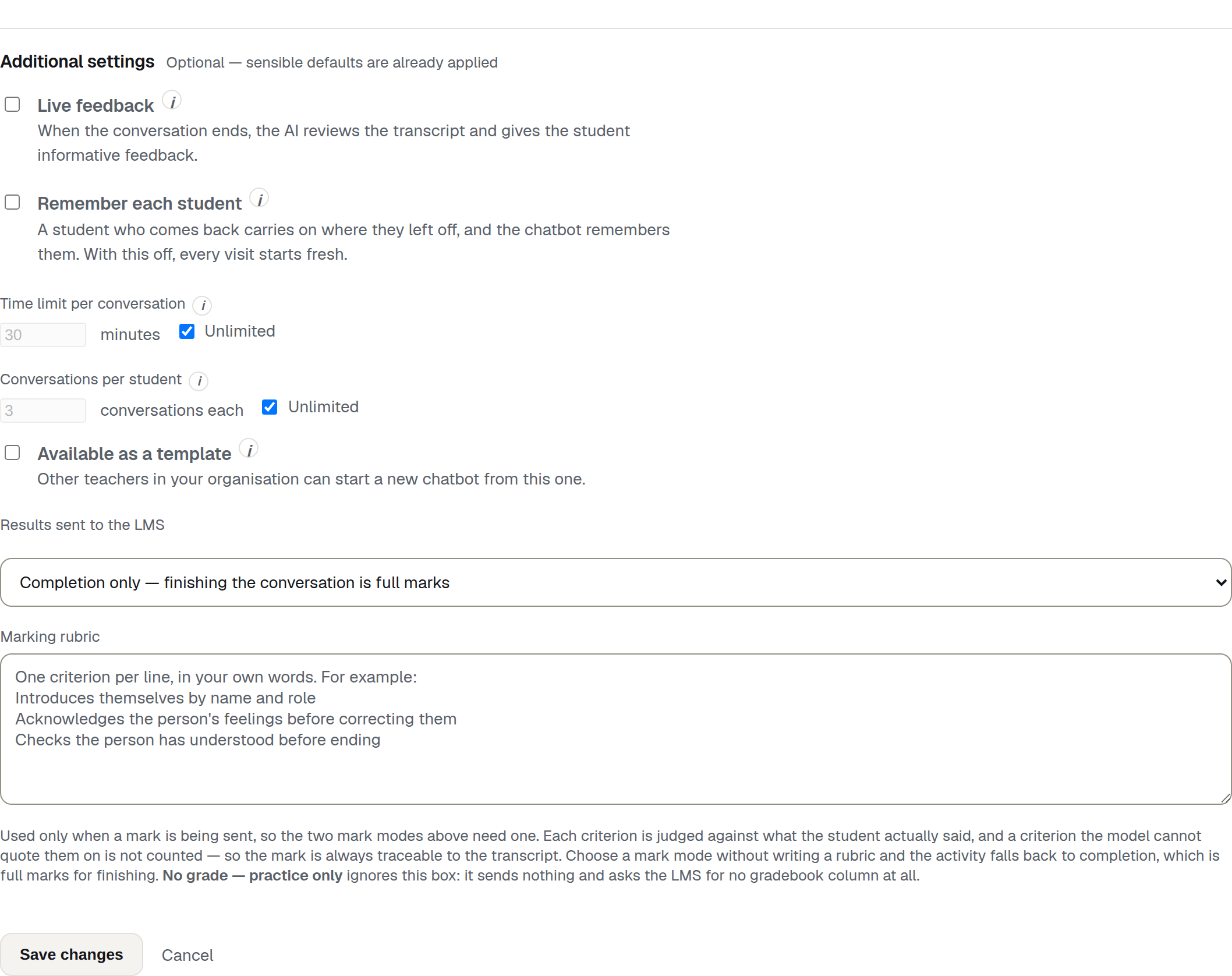
Live feedback
When the student ends the conversation, the AI reads the whole transcript and writes them feedback on how it went.
This is intended for practice rather than assessment. Use it on Roleplay and Teacher chatbots that are not sending a mark.
Roleplay is the usual home for it: the feedback is written only after the student has finished, so it does not interrupt the character or break the scenario. It also puts a debrief at the end of a rehearsal, which is the part of simulation practice with the strongest evidence behind it.
Warning
It switches itself off when the chatbot marks
Live feedback saves as off in two cases, whatever you ticked:
- the chatbot sends a rubric mark — a student being marked should read their teacher’s decision, not an AI critique written before the teacher has reviewed it;
- the chatbot uses Custom behaviour, where the product cannot tell what the conversation was built to do.
An unmarked chatbot — No grade — practice only or Completion only — can use it. Check the Live feedback row on the edit overview after saving.
Remember each student
Off, a finished visit does not create a conversation the student can return to.
On, a student can use Pause — continue later and resume the same unfinished conversation. Its transcript and model context continue across visits. When the student uses Finish and hand in, that conversation closes. The next conversation starts fresh; the character does not carry knowledge across finished conversations. The setting’s on-screen tooltip still describes the next conversation starting with the character “already knowing them” — that text is out of date.
A resumable conversation is tied to the student’s signed-in account. By default, a thread that has been idle for more than 30 days is no longer resumed; an administrator can configure a different period.
Memory changes what the two limits below mean, so read them together.
Time limit per conversation
How long one conversation may run. The student sees a countdown and is warned near the end.
The enforced limit counts the time between turns, with each gap capped at about two minutes — the same cap used for billed minutes — so stepping away does not spend the limit beyond that. The visible countdown runs continuously in the browser, including while the student is thinking or has stepped away, and corrects itself from the server after each turn.
With Remember each student on, the limit covers the whole unfinished conversation across its resumed visits.
The control is a number of minutes with an Unlimited tick beside it, and Unlimited is the default. Ticking it empties the box; typing a number clears the tick.
Conversations per student
How many separate conversations each student may have with this chatbot. They are shown how many they have left before they start.
Only conversations they actually spoke in count, so opening the page and closing it does not cost an attempt. Your own test runs never count.
With Remember each student on, one continuing conversation counts once however many times they come back to it.
A student who has used them all sees No conversations left. before the conversation starts. Test this setup before using a one-attempt assessment.
Conversations on this link
A ceiling for the share link itself, counting everybody together.
The setting above limits one learner, and it does not apply to you. This one limits the link. They are separate questions: with three per student and no total, five people holding the link can have fifteen conversations between them.
Set it where you can say roughly how many conversations should ever happen — a single client, a small cohort, a demonstration. Leave it Unlimited for a class you control through your LMS. Your own test runs never count against it.
When the total is reached, anyone opening the link sees This link is closed. Somebody already part-way through a conversation is allowed to finish.
Note
This is the ceiling that limits a link you have lost track of. Conversations per student cannot do that, because it counts each person separately.
Available as a template
Publishes this chatbot so other teachers in your organisation can create their own copy. Copies inherit prompts, limits, the character and teaching content. Website copies do not inherit the LMS result mode or rubric.
This is how a department keeps its scenarios consistent instead of every teacher writing prompts from scratch.
The chatbot then carries a Template badge on the dashboard. Templates and copies covers what a copy inherits, what it does not, and how you keep sight of the copies afterwards.
You will only see this if you are a lead teacher or an administrator
Lead teachers and administrators can publish templates. A standard teacher normally does not see this setting, and a copy is not automatically a template. On an LMS platform registered for authoring, a standard teacher may see this control. Publishing during creation is refused, but the same tick is honoured on an edit save — check the saved overview.
Results sent to the LMS
This block decides what an LMS receives when a student finishes. It is shown even when the chatbot is not currently linked to an LMS activity.
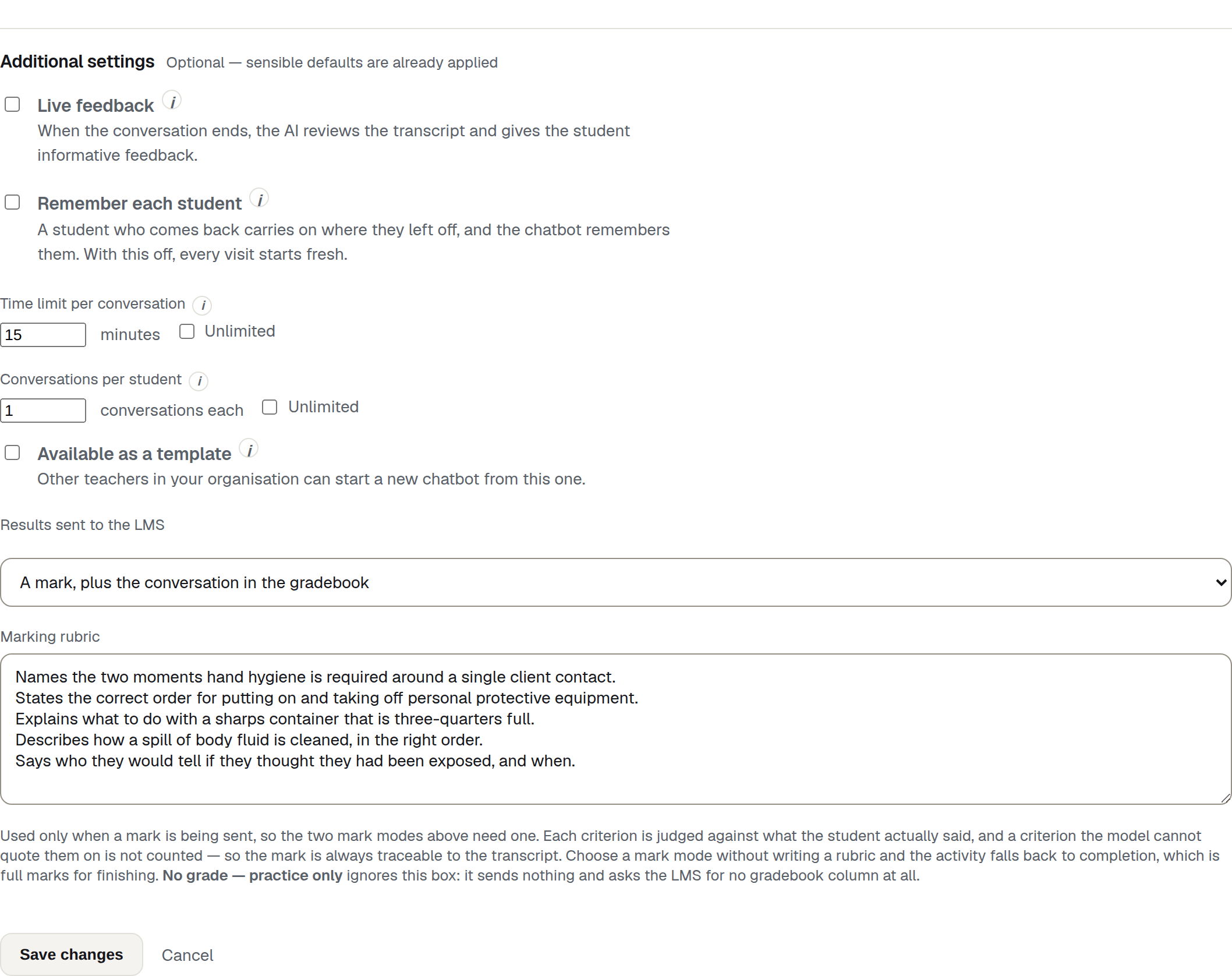
| Control | What it does | Who sees it |
|---|---|---|
| No grade — practice only | Nothing is sent, and the activity is given no gradebook column at all. | Everyone who can build |
| Completion only — finishing the conversation is full marks | Nothing is judged, but 100 out of 100 is sent for finishing. | Everyone who can build |
| A mark against your rubric | Every criterion in the rubric is judged, and the total goes to the gradebook. | Everyone who can build |
| A mark, plus the conversation in the gradebook | The same mark, with the transcript attached where the LMS can show it. | Everyone who can build |
Completion only is not the same as ungraded. It sends 100 out of 100, so every student who finishes appears in the gradebook with full marks. Choose No grade — practice only when the activity should stay out of the gradebook entirely.
Warning
Choose practice-only before you add the activity, not after
No grade — practice only works by not asking your LMS for a gradebook column. That request happens once, when the activity is created from the content picker, so the setting has to be on the chatbot before you add it to a course.
Switching an existing activity to practice-only stops anything being sent, but it cannot take back a column the LMS has already made — you are left with an empty column, which you can remove in the LMS. Switching the other way, to a graded mode, leaves an activity with nowhere to send a result; add it to the course again to get a column.
Warning
A mark mode with no rubric silently becomes completion
Without a rubric, there is nothing to judge. The activity falls back to Completion only, so a student who finishes receives full marks. This applies to the two mark modes only — No grade — practice only never falls back, and sends nothing whether or not a rubric is present.
You can see it before it happens: the Sent to the LMS row on the edit overview reads what will actually happen, and adds — no rubric yet when the mode you chose is not the one that will run.
The marking rubric
One criterion per line, in your own words. For example:
Introduces themselves by name and role
Acknowledges the person's feelings before correcting them
Checks the person has understood before ending
Used only when a mark is being sent, so only the two mark modes need one. Each criterion is judged against the conversation. When the model proposes that a criterion was met, it must provide a matching quote of at least 20 characters from a student turn. A proposed Met without that evidence is dropped. A criterion judged Not met stays in the result and needs no quote. Without a rubric, the activity falls back to completion, whatever is chosen above.
The marking details show how each criterion was handled:
- a criterion is counted as met only when a matching student quote of at least 20 characters can be verified in the transcript;
- an unverified Met is shown as Not counted, because the wording could not be found in the transcript;
- a Not met result stays counted without a quote;
- you see the working — every criterion, its reason, and the quote — before anything reaches the gradebook, and you can change the mark. Releasing a mark is that screen.
Writing criteria that can be judged
Write each one as a thing a person says or does in the conversation, not as a quality of the person.
| Works | Does not work |
|---|---|
| Introduces themselves by name and role | Shows professionalism |
| Asks what the guest wants before offering a refund | Has good communication skills |
| Checks the person has understood before ending | Demonstrates empathy |
| States the two-hour return window | Understands the policy |
The right-hand examples are difficult to judge consistently because they do not name an observable action. Write criteria that can be supported by what the student says or does in the conversation.
One criterion per line, and keep the list short enough that a student could have covered all of it in the time you have allowed. Five criteria in a ten-minute conversation is a fair ask; fifteen is not.
Note
Whatever the rubric says, tell the student the same thing in Student instructions — see The scenario. The rubric is not shown to them before they start.
Where these settings show up afterwards
The edit overview summarises the lot in four rows: Live feedback, Remembers students, Limits (as 30 min · 3 conversations, or Unlimited), and Sent to the LMS. Read that overview after any save. It states what the chatbot will do, which is not always what the form was set to.